The display
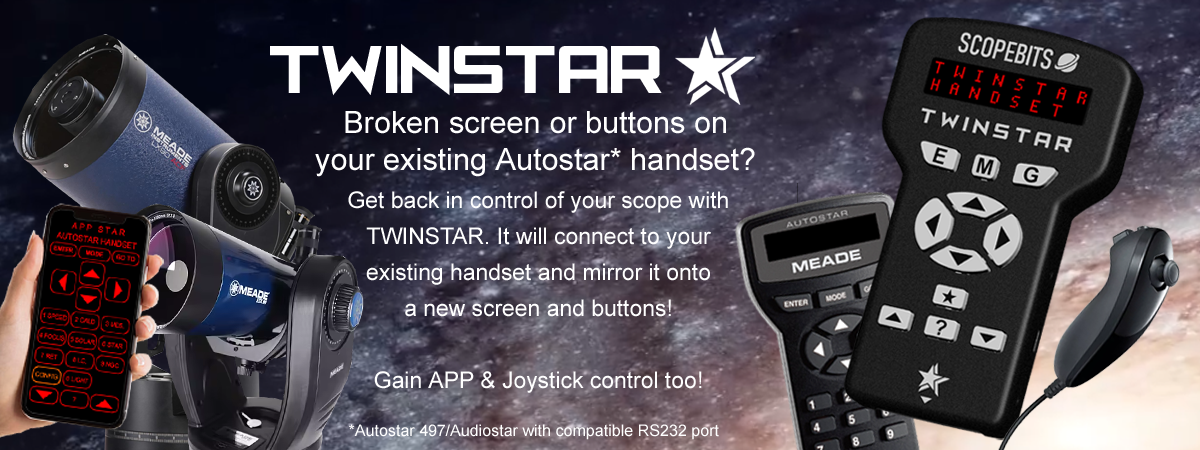
A bright red two-line display showing exactly what your Autostar shows: menus, coordinates, the cursor when you enter numbers, and long descriptions that scroll across. Fine-tune the contrast from the back (see screen contrast).

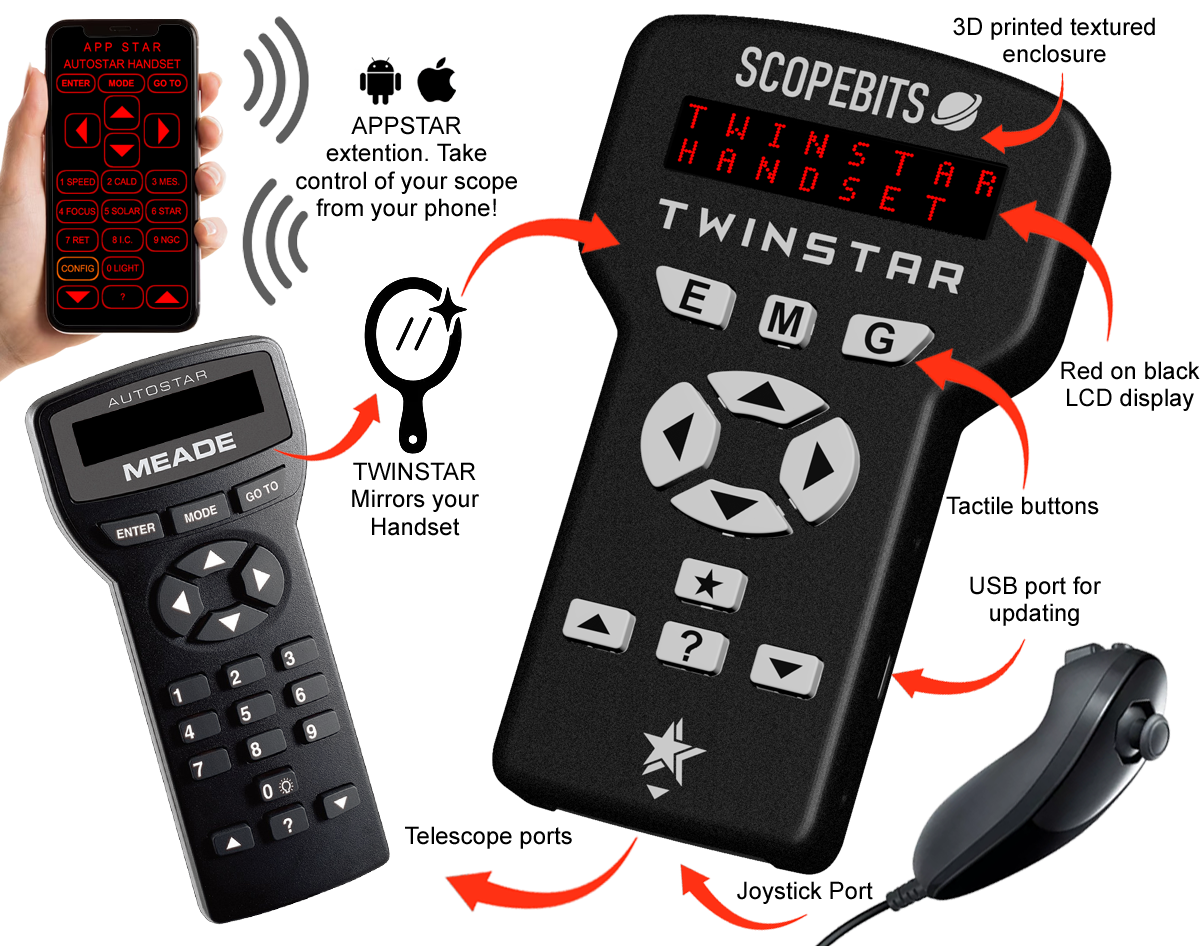
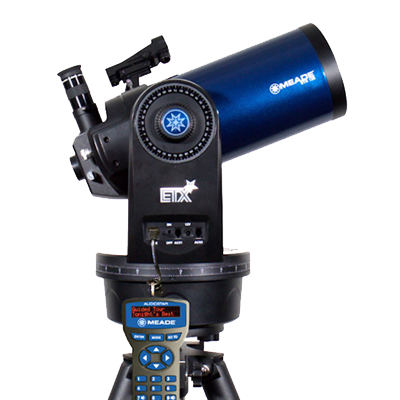
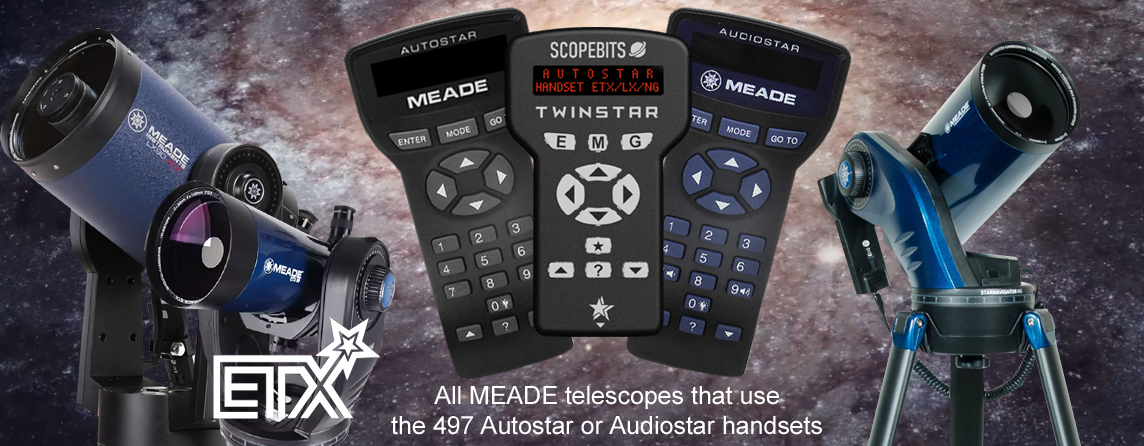
ETX-60, ETX-70, ETX-80, ETX-90, ETX-105, ETX-125 and ETX Observer models.
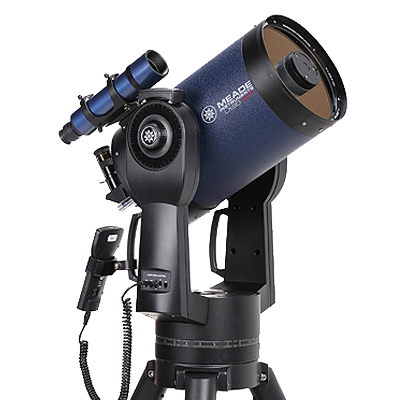
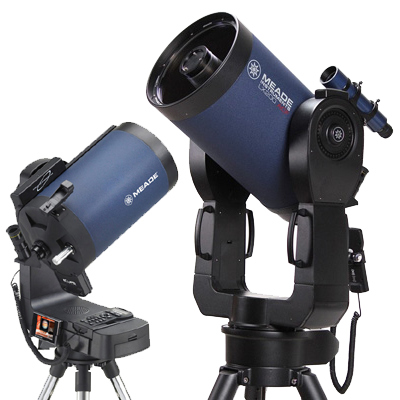
LX90 models using the AutoStar or AudioStar handset system.
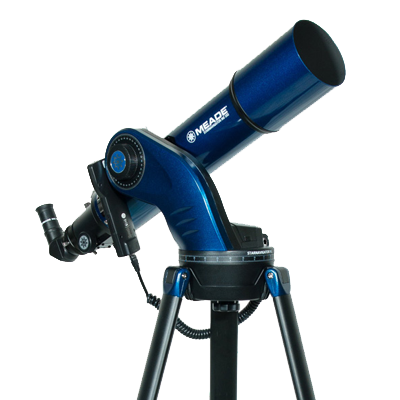
StarNavigator and StarNavigator NG models.
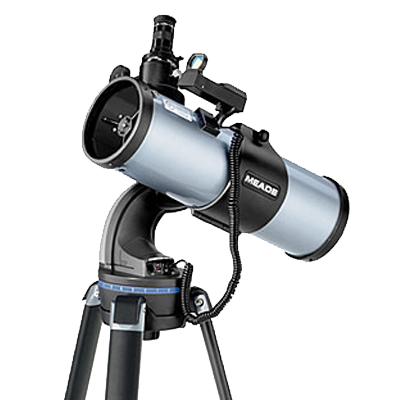
DS and DSX telescope models.
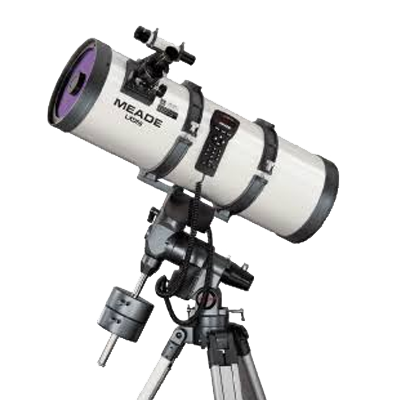
LXD55 and LXD75 mounts and telescope packages.
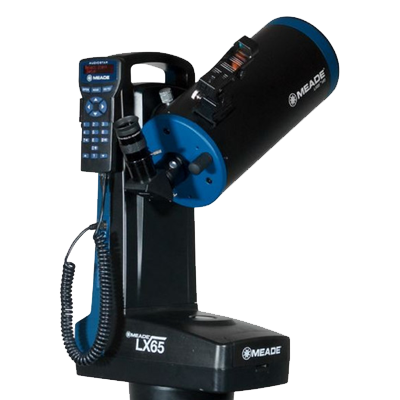
LX65 telescope and mount systems.
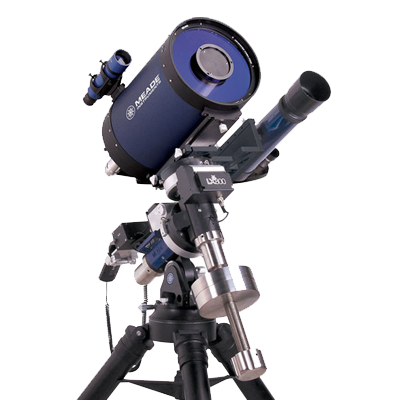
LX80 mount and telescope packages.
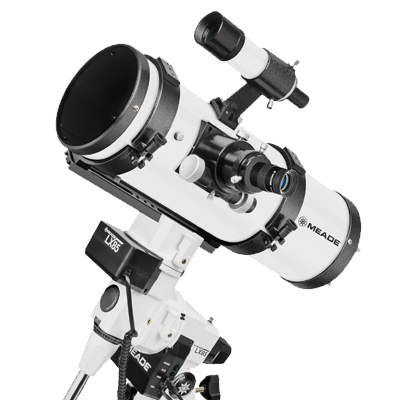
LX85 mounts and telescope packages.
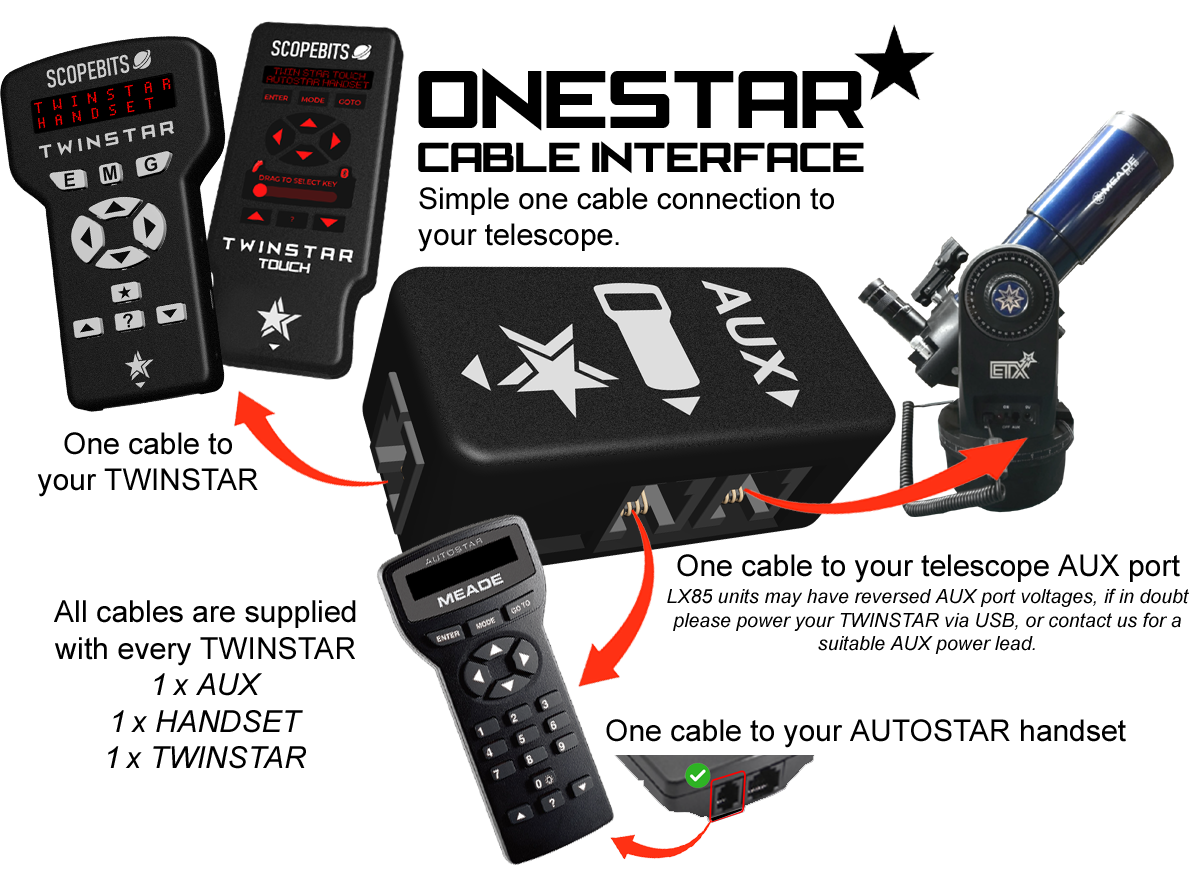
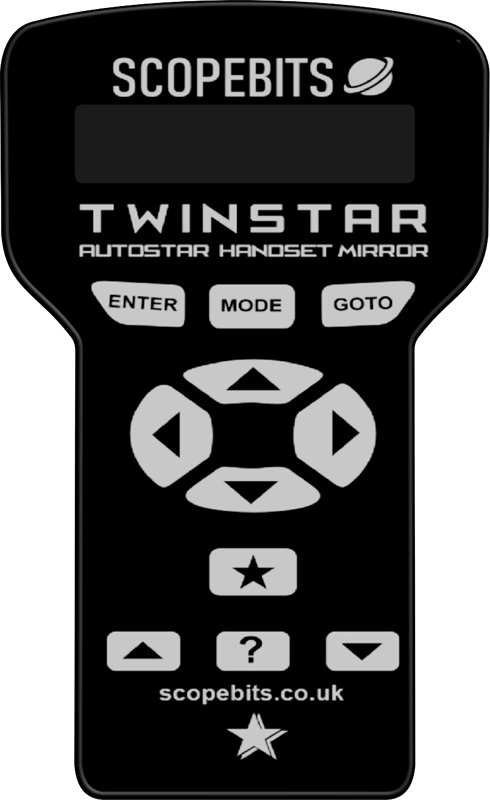
On your telescope the menus come from your own Autostar or Audiostar handset, which TWINSTAR mirrors.
Not all operations are available, and some are simulated for illustration. Planet positions are for demonstration only.
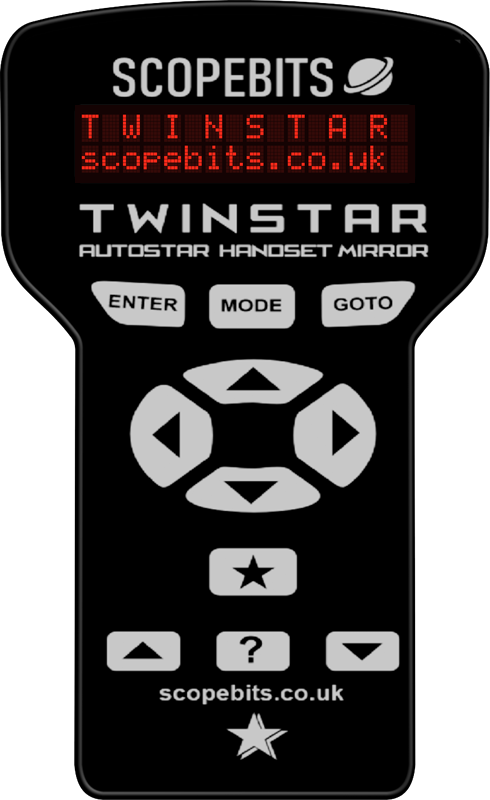
A bright red two-line display showing exactly what your Autostar shows: menus, coordinates, the cursor when you enter numbers, and long descriptions that scroll across. Fine-tune the contrast from the back (see screen contrast).
The same as the keys on your Autostar. Hold MODE for about two seconds for the status screens (RA/Dec, Alt/Az, time).
Press and hold to move the telescope, let go to stop. When the Autostar is asking for a value, they move the cursor instead, just like the arrows on the handset.
Tap ★ for the number keys. Scroll with ▲ ▼ to choose a key, then press ENTER to send it, or MODE to cancel. Each key shows its slew speed:
| Key | Slew speed |
|---|---|
| KEY1 | Guide |
| KEY2 | 2x Fine |
| KEY3 | 8x Slow |
| KEY4 | 16x Medium |
| KEY5 | 64x Medium |
| KEY6 | 0.5° Medium |
| KEY7 | 1° Coarse |
| KEY8 | 1.5° Coarse |
| KEY9 | Max |
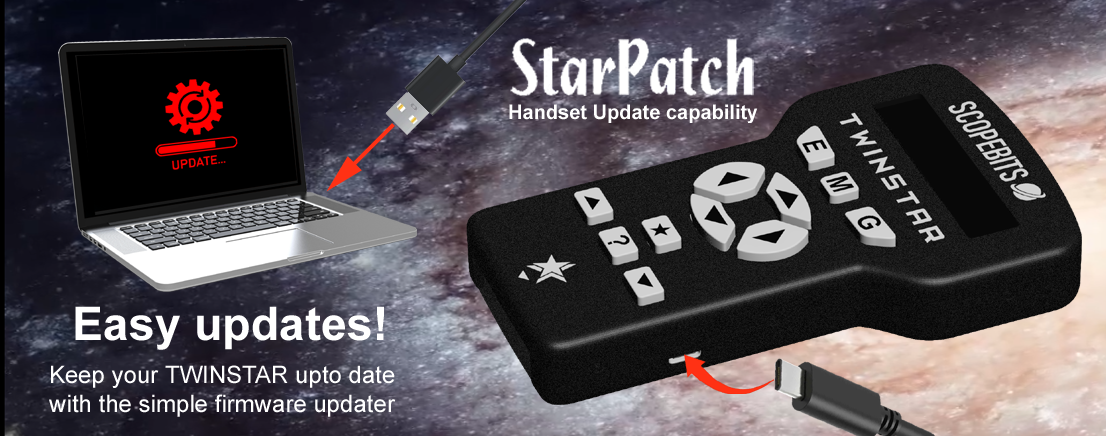
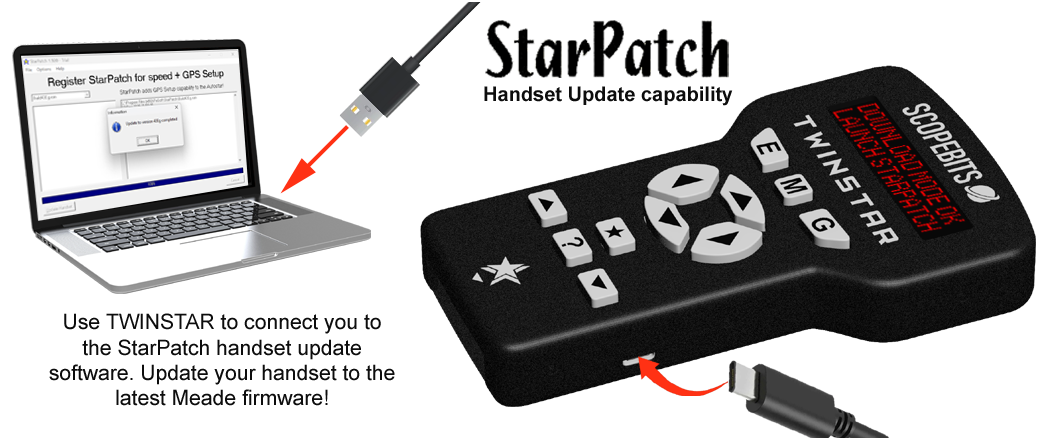
Hold ★ for about two seconds for TWINSTAR's options: APPSTAR WiFi turns on the phone handset page, and STARPATCH puts your handset into download mode for StarPatch. ▲ ▼ move the >, ENTER starts it, MODE leaves.
Help for whatever is on the display, as on the Autostar.
▲ and ▼ scroll through menus and lists, and move the choice in the ★ menus.
Works in any browser, including Safari on iPhone and iPad, with nothing to install. TWINSTAR makes its own Wi-Fi network and serves the handset page itself, so it works at a dark site with no internet or mobile signal.
Hold the ★ key for about two seconds. TWINSTAR's options appear, with APPSTAR WiFi already chosen.
TWINSTAR starts its own Wi-Fi network, called APPSTAR.
On your phone, join the Wi-Fi network APPSTAR (no password), then open http://192.168.4.1 in your browser. If your phone warns that the network has no internet, choose to stay connected.
Tip: "Add to Home Screen" gives you an APPSTAR icon that opens full screen.
The handset appears on your phone with the same display as TWINSTAR, and TWINSTAR's display goes back to your Autostar. Use either, or both. The Wi-Fi stays on until you switch TWINSTAR off.
TWINSTAR's Bluetooth is ready whenever it's running, so your phone can stay on your home Wi-Fi or mobile data. The Bluetooth app adds Speak Display and game controller support.
Open www.scopebits.co.uk/APP/WEBAPP in Google Chrome, with Bluetooth on. On a computer, use Chrome or Microsoft Edge on one with Bluetooth.
Safari can't use Bluetooth, so install the free BlueFy browser, open it and type www.scopebits.co.uk/APP/WEBAPP into it.
The first time, choose Autostar/Audiostar (ETX, LX90) and whether to Speak Display, then press OK.
Press LINK (bottom right), choose APPSTAR in the popup and press Pair. TWINSTAR shows up as APPSTAR.
Press LINK (bottom right), then tap APPSTAR when BlueFy shows Select device. TWINSTAR shows up as APPSTAR.
You'll hear a tone, and the handset on your phone shows the same display as TWINSTAR. Use either, or both.
The phone runs the real APPSTAR app, connected to a simulated telescope. Not all operations are available, and some are simulated for illustration.
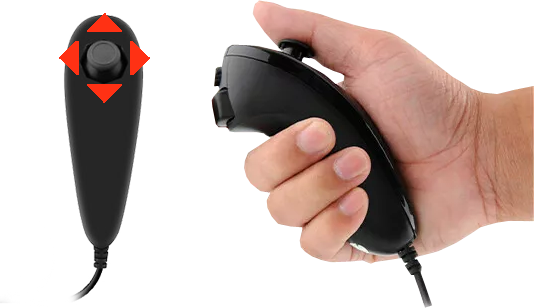
Push the stick up, down, left or right to move the telescope. Let go and it stops.
The joystick slews at the Autostar's current speed. Change it with a number key from the ★ menu: KEY9 for the fastest, KEY1 for the slowest.
TWINSTAR finds the joystick when you plug it in, even while it's running.
Your Autostar or Audiostar stays connected and runs the telescope. TWINSTAR mirrors its display and sends its keys, so everything works exactly as before.
Tap ★ for the number keys, hold it for APPSTAR and STARPATCH. MODE leaves either without doing anything.
Use TWINSTAR, the joystick and the phone app at the same time. Every key shows on both displays.
If your phone loses its connection while you hold an arrow on it, TWINSTAR stops the slew.
If TWINSTAR shows "Waiting for Autostar...", check the cables and that your handset is on. Old handset firmware may also need updating with StarPatch.
Copyright 2026 ScopeBits.