Please select your telescope platform

This is so the we can show you the relevant information.

TOUCHSTAR

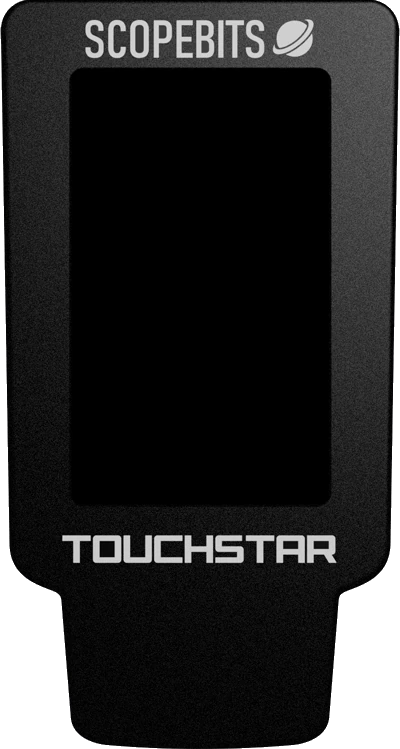
TOUCHSTAR - Modern Control Meets Classic Power. Finally, a controller that matches the tech in your telescope. TOUCHSTAR features a crisp touchscreen with switchable Autostar 2 or 3 layouts and the built-in SKYVIEW planetarium. SKYVIEW reads where your scope is pointing, shows you tonight's best targets, and can guide* you onto them. It also has optional joystick support for precise slewing and focus, and extended control via the FREE Android app. It's the ultimate upgrade - sleek, smart, and built for serious stargazing.

Existing TOUCHSTAR users, you can get this feature for FREE just by updating your device!
NEW Features: Backlight dimming & SKYVIEW planetatrium - see below for more information.

*Skyview gets its data from the mount, and this is not fast enough for realtime planetarium updates, you can still get guidance by moving in increments.


Quickly jump to an information section using these buttons

TOUCHSTAR unit overview

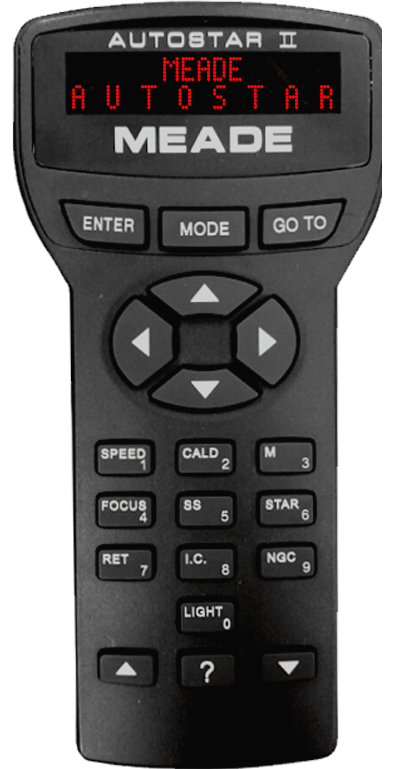
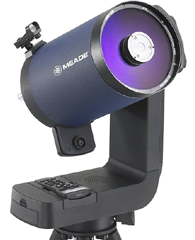
TOUCHSTAR simply plugs into your mount's HBX port. Use the original lead, or the optional supplied one. It replicates your original MEADE Autostar 100%! Ready for LX200 ACF, LX200 GPS, LX200 R, LX400, LX600, LX850.

Features

Autostar 2 Compatible

    Built-In GoTo Catalog: 145,000+ Objects
    NGC: 7,840
    IC: 5,386
    Messier Catalog: 110
    Caldwell Catalog: 109
    Named Objects: 227
    Herschel Catalog: 400
    Abell Catalog of Galaxy Clusters: 2,712
    Arp Catalog of Irregular Galaxies: 645
    Uppsala Galaxy Catalog: 12,940
    Morphological Catalog of Galaxies: 12,939
    General Catalog of Variable Stars: 28,484
    SAO Catalog: 17,191
    Hipparcos Star Catalog: 17,325

TOUCHSTAR also features joystick control, APPSTAR and SKYVIEW planetarium!


Keypad explained

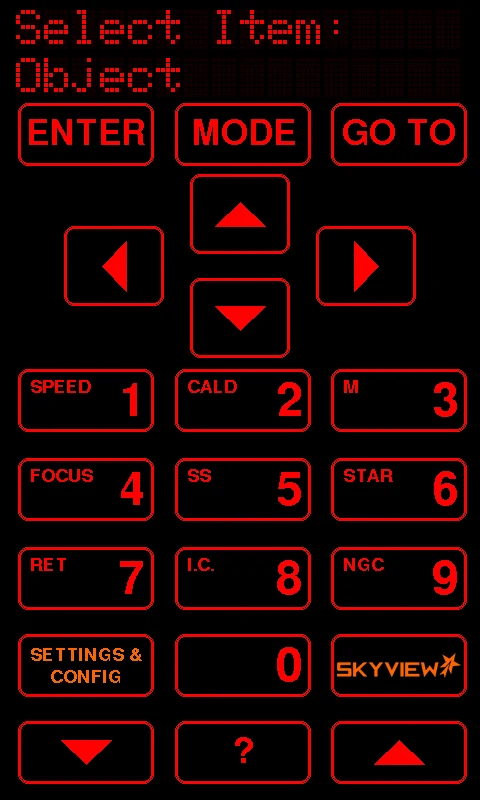
This is the screen you'll use most. Every key sends the same code as the matching key on the Autostar handset, so the Autostar's menus, GOTOs and alignment work exactly as they always have. Tap a numbered marker on the handset to jump to what it does.
The TouchStar keypad screen
1

The Autostar's display

The Autostar's two-line display, drawn dot for dot, including its blinking cursor. Whatever the Autostar would show, this shows.
2

ENTER, MODE, GO TO

The same as the real keys. Hold MODE for about two seconds to open the Autostar's status screens (RA/Dec, Alt/Az, time, site). SKYVIEW's SYNC reads these.

3

Slew arrows

Hold an arrow to move the scope, and let go to stop. They're held keys, just like the rubber ones, so the scope moves at whatever slew speed the Autostar is set to.

4

Number keys

Digits for typing in coordinates and catalogue numbers. The small caption on each key is its Autostar shortcut (SPEED, M, STAR, NGC and so on). The captions follow the Autostar mode chosen in Settings.

5

SETTINGS & CONFIG

Opens the handset's own settings, explained below. The Autostar never sees this key.

6

SKYVIEW

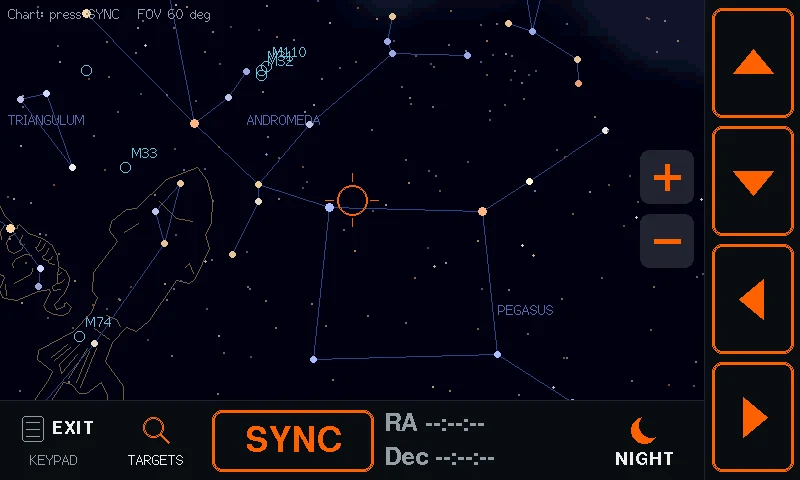
Opens the planetarium. The handset turns to landscape, reads where the scope is pointing, and can guide you to a target.

7

Scroll and help

The down and up scroll keys move through Autostar menus and lists. ? is the Autostar's help key.

Settings & Config

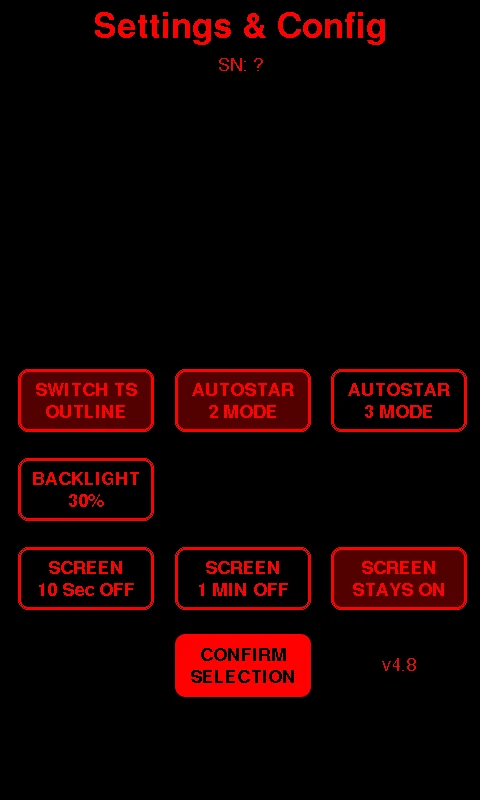
Tap SETTINGS & CONFIG on the keypad. Every change is saved the moment you make it, and stays saved with the power off. CONFIRM SELECTION takes you back to the keypad.
The Settings & Config screen

The lit keys show the current choice. These are the settings the handset ships with.

1

SWITCH TS: the look of the keys

Each tap moves to the next of three key styles. All three behave the same; choose the one you can read best at the eyepiece.

Tap a style to preview it on the handset.

2

AUTOSTAR 2 MODE / AUTOSTAR 3 MODE

Set this to match your controller. Autostar 3 mode relabels the keypad to match an Autostar III handset. The handset plays a short tune and shows the new mode when you switch.

KeyAutostar 2Autostar 3
MODEMODEBACK
??MEDIA
5SSPLANET
7RETVOL.
8I.C.TOURS
9NGCDISP
0(none)MODE
3

BACKLIGHT

Each tap switches between the two levels. The backlight is driven at 500 Hz so it doesn't flicker, even at the dim setting.

30 % normal15 % dark site
4

SCREEN: the sleep timer

How long the keypad screen stays lit with no touch. The first tap on a sleeping screen only wakes it, so you can't press a key by accident in the dark. SKYVIEW never sleeps while it's open.

10 sec off1 min offStays on
5

CONFIRM SELECTION

Back to the keypad. Nothing else to save: your choices are already stored.

6

SN: the handset's serial number

Unique to your handset and fixed. Quote it if you ever need support. The firmware version is shown bottom right (here v4.8).

SKYVIEW planetarium

Tap SKYVIEW on the keypad and turn the handset on its side. Step through what happens next. Each picture is the real screen.


Handset demo

Experience TOUCHSTAR's features, with a pre-aligned demo scope. Change settings, navigate menus and launch the SKYVIEW planetarium. Now you can really touch the stars!

TouchStar handset
Backlight off · tap to wake

Demo night: 29 October 2026 from 21:00 UT, from London. Not all operaions are avaialble, and some are simulated for illustration purposes.


APPSTAR phone app

TOUCHSTAR has APPSTAR built in: use your phone, tablet or computer as a handset over Bluetooth, alongside TOUCHSTAR. Try the real app on the phone below.

TOUCHSTAR's Bluetooth is ready whenever it's on, so your phone can stay on your home Wi-Fi or mobile data. The app adds Speak Display and game controller support.

  1. Open the app

    Open www.scopebits.co.uk/APP/WEBAPP in Google Chrome, with Bluetooth on. On a computer, use Chrome or Microsoft Edge on one with Bluetooth. Chrome may offer to install it as an app.

    Safari can't use Bluetooth, so install the free BlueFy browser, open it and type www.scopebits.co.uk/APP/WEBAPP into it.

  2. Choose your handset

    The first time, pick the layout that matches your TOUCHSTAR's mode (Autostar 2 or Autostar 3) and whether to Speak Display, then press OK.

  3. Press LINK and pair

    Press LINK (bottom right), choose APPSTAR in the popup and press Pair. TOUCHSTAR shows up as APPSTAR.

    Press LINK (bottom right), then tap APPSTAR when BlueFy shows Select device. TOUCHSTAR shows up as APPSTAR.

  4. Connected

    You'll hear a tone, and the handset on your phone shows the same display as TOUCHSTAR. Use either, or both.

The phone runs the real APPSTAR app, connected to a simulated telescope. Not all operations are available, and some are simulated for illustration.

Joystick control

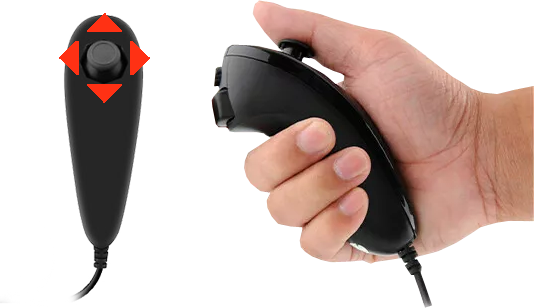
Plug in the optional joystick for one-handed control. Point at a card to see the move.
The joystick and what it does

Slew

Push the stick up, down, left or right to move the telescope. Let go and it stops.

C

Slew speed

Hold the C button and push the stick up or down to change the slew speed, shown on the display. Let go of C and the telescope slews at that speed.

Z

Focus

Hold the Z button: move the stick left or right to choose the focus speed (shown on the display), then up or down to focus in or out. Works with the Meade micro focuser.


Good to know

A few handy things about using TOUCHSTAR and SKYVIEW.

Align first

SKYVIEW reads where the Autostar thinks it's pointing, so align the scope as usual before you SYNC. If the numbers don't add up, it tells you why instead of guessing.

Set time and site

Enter the time, date and site on the Autostar when it asks. SYNC reads them and uses them to place the sky.

It beeps

Every key press gives a soft click, and the Autostar's own beeps come through the handset's speaker. SKYVIEW beeps when you reach a target.

Back to the Autostar any time

EXIT in SKYVIEW closes the status screens and returns to the keypad, and the Autostar carries on as before. SKYVIEW never changes the Autostar's alignment or settings.

Handset and phone together

Use TOUCHSTAR and the APPSTAR app at the same time. Every key shows on both displays.

Optional joystick

Add the optional joystick for one-handed slewing in the dark, without looking at the screen. Hold C to change the slew speed and Z for focus with a Meade micro focuser. See joystick control, or find it in the store.
How to update the firmware

You can update your TOUCHSTAR using the USB online updater. Follow this guide.


3D print files

Listed here are the 3D print files available for this product.

These are available in the store, but if you have the facility to 3D print them here they are.

Right click and "Save As"

3D printable STL for the bracket

Use a high quality PLA, ABS or PetG. 5% infill. This is a multi-use bracket and can be fit onto the LX200 handles, or used with the leg adapters below. LS users will have to use the tripod leg adapters. The bracket also can hold the joystick.

3D printable STL for the 2" tube leg adapter

Use a high quality PLA, ABS or PetG. 5% infill. To be used with the bracket above.

3D printable STL for the 1.5" tube leg adapter

Use a high quality PLA, ABS or PetG. 5% infill. To be used with the bracket above.

PDF files

Listed here are the PDF files available for this product.

PDF bracket instructions

How to install the bracket to the LX200 handles.


FAQ

Here are some of the frequently asked questions.

Check these as they may answer any support questions
Yes TOUCHSTAR is a 100% plug in replacement for your Autostar 2 or 3 handset.
TOUCHSTAR works with any mount that uses the Meade Autostar 2 eg LX200 ACF, LX200 GPS, LX200 R, LX400, LX600, LX850. Also the Autostar 3 used on the Lightswitch platform. See this guide.
TOUCHSTAR simply plugs into the existing HBX port on your mount.
Tap SETTINGS & CONFIG on the keypad, then choose AUTOSTAR 2 MODE or AUTOSTAR 3 MODE to match your controller. The keys are relabelled to match, eg MODE becomes BACK and ? becomes MEDIA in Autostar 3 mode. Your choice is saved straight away. See this guide.
Yes. In SETTINGS & CONFIG, tap SWITCH TS to cycle through three key styles: Classic, Outline and Raised. They all work the same, so pick the one you find easiest to read at the eyepiece. See this guide.
SKYVIEW is a planetarium built into your TOUCHSTAR. Tap the SKYVIEW key and the screen turns to landscape and shows the sky with stars, constellations, planets, the Moon and deep sky objects. It reads where your scope is pointing and can guide you to any target. You can try it in the handset demo on this page. Try the demo.
SYNC reads your Autostar's own status screens for you: where the scope is pointing (RA/Dec and Alt/Az), the time, date and your site. TOUCHSTAR holds MODE, steps through the screens, then closes them again, so you don't have to. The scope's position then appears as a crosshair on the sky. See this guide.
Yes. SKYVIEW uses the position your Autostar reports, so align as normal first, with the correct time, date and site entered. SKYVIEW checks that the numbers it reads agree with each other. If they don't, for example on an unaligned or parked scope, it tells you why rather than showing you the wrong sky.
Tap TARGETS. The TONIGHT list shows what's worth a look right now, with its direction and how high it is, and there are lists for PLANETS, STARS and DEEP SKY. FIND lets you type a name or catalogue number, eg M13, NGC 869 or Capella. You can also just tap a star or object on the sky to make it your target.
SKYVIEW guides you there. It draws the path from your scope to the target and lights up the arrow keys you need, showing how many degrees are left in each direction. Hold the lit keys and the numbers count down, and TOUCHSTAR beeps when you're ON TARGET. You can still use the Autostar's own GO TO from the keypad at any time.
No. SKYVIEW only reads from the Autostar. Tap EXIT to return to the keypad, and the Autostar carries on exactly as before.
This is almost always the time, date or site entered on the Autostar. Check the time and date (including daylight saving) and that your longitude is set to the correct East or West. Then align again and press SYNC.
Yes. In SETTINGS & CONFIG you can set the BACKLIGHT to 15% (30% is normal). It's driven at 500 Hz, so it won't flicker. In SKYVIEW, tap NIGHT to turn the whole sky red to protect your night vision. Both choices are remembered.
Yes. The handset demo on this page runs the real TOUCHSTAR firmware in your browser, connected to a simulated telescope that is already aligned on Vega. You can change settings, use the menus and try SKYVIEW. Try the demo.
This is a purely personal choice. The support was added because it makes slewing effortless compared to trying to find handset buttons in the dark. Some mounts also allow focus control from the joystick. See this guide.
TOUCHSTAR does not use Wifi, it uses Bluetooth LE for communication to APPSTAR for iOS and Android.
Yes. TOUCHSTAR supports APPSTAR functionality, allowing you to control your telescope through the APPSTAR handset replacement app. See this guide.
Yes but you will need to use a different browser, the BlueFy app is free and will allow you to easily connect to APPSTAR. See this guide (Select Apple iOS APP Bluetooth).
No additional power supply is required. TOUCHSTAR is powered through the telescope handset connection. Ensure if running on batteries that they are fresh. Low batteries can cause the TOUCHSTAR to not start.
Yes. Firmware updates can be installed through the ScopeBits firmware update tools available on the support website. Updating firmware ensures the latest features and compatibility improvements, including new SKYVIEW features. Make sure you're using Google Chrome or Microsoft Edge on desktop. Mobile browsers and Safari are not supported for WebUSB/WebSerial updates. See this guide.
First tap the screen. If SCREEN is set to 10 sec or 1 min OFF in SETTINGS & CONFIG, the screen turns off when it isn't being used, and the first tap only wakes it. If it still stays dark, check that all cables are securely connected and that your telescope is powered up and switched on. If the issue continues, restart the telescope and reconnect the device.

Customer reviews

Here are some reviews from customers about their TOUCHSTAR.

Also check out the gallery to see customer images of ScopeBits gear in action.


BUY

If all of the above info has interested you, and you are interested in purchasing a TOUCHSTAR, visit the store to see purchasing options.

Copyright 2026 ScopeBits.