The display
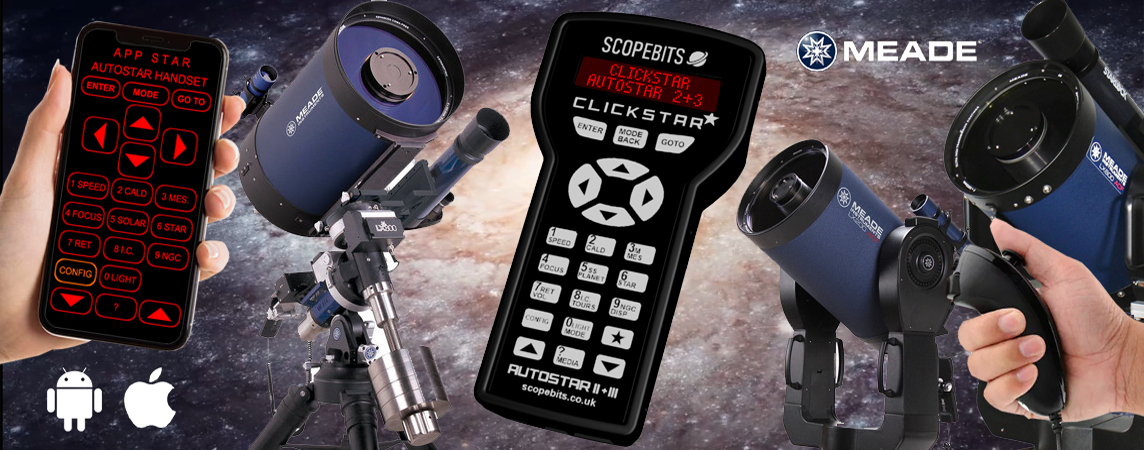
A bright two-line backlit display showing exactly what your Autostar shows: menus, coordinates, the cursor when you type numbers, and long descriptions that scroll across. Fine-tune the contrast from the back (see screen contrast).
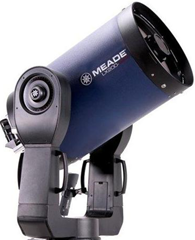
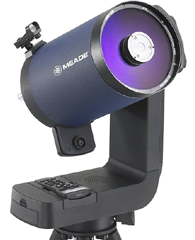

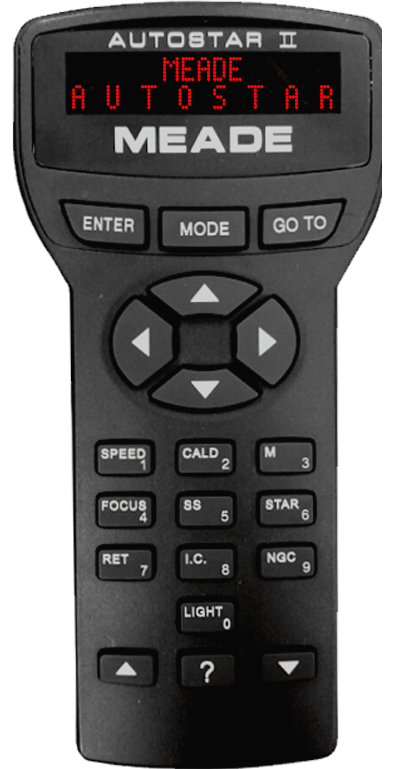
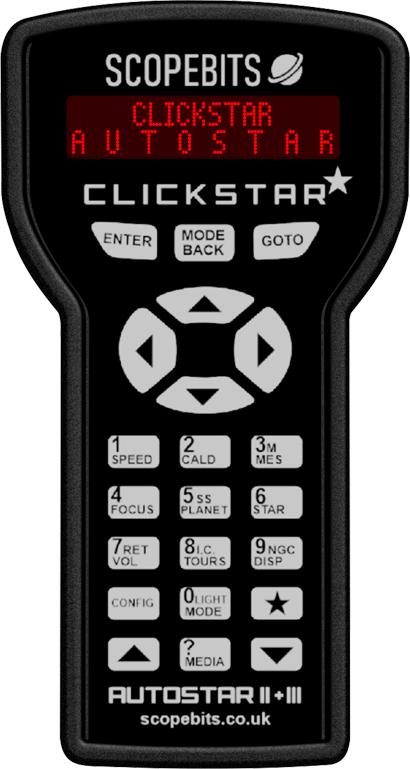
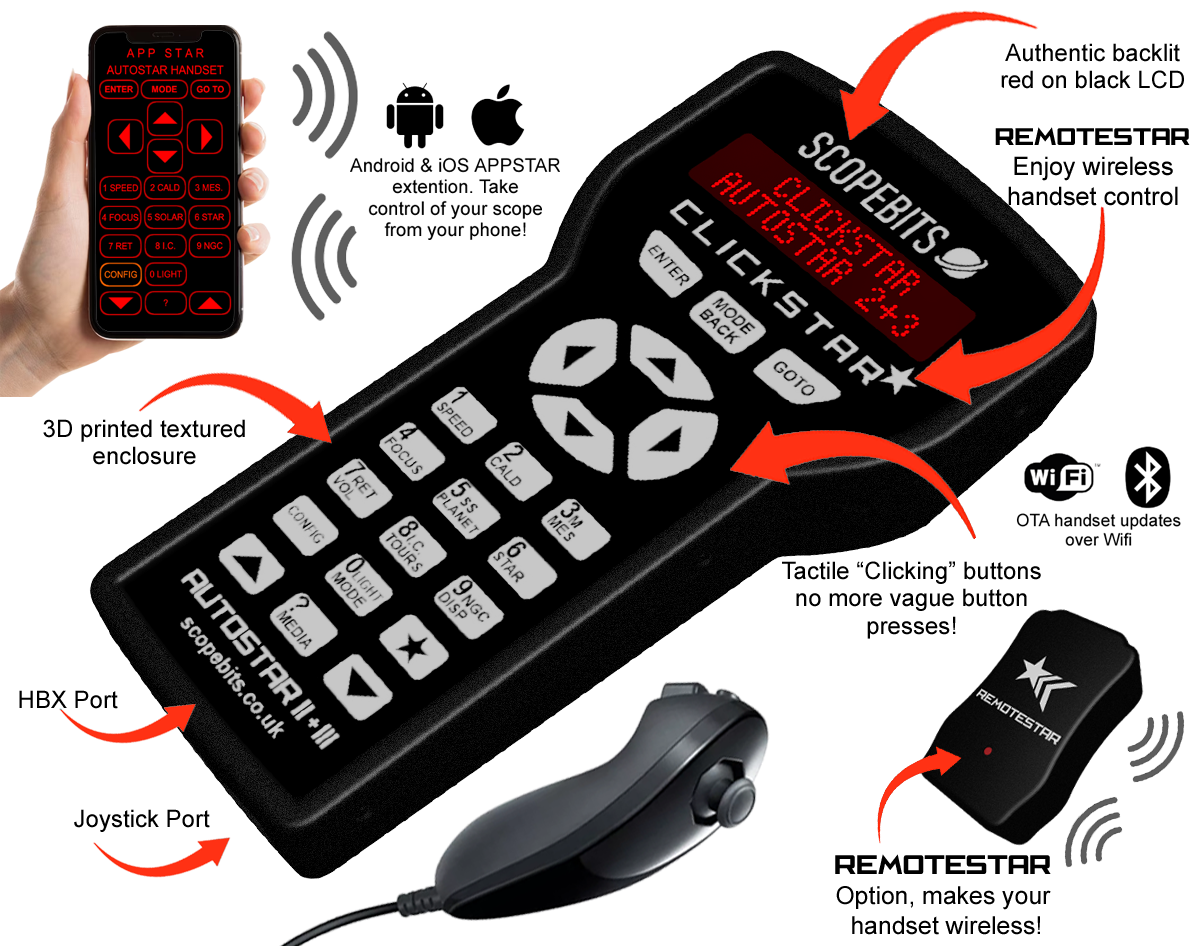
On your LX200 the menus come from the telescope itself, so you'll see your own Autostar II firmware. The keys are labelled for both Autostar 2 and Autostar 3.
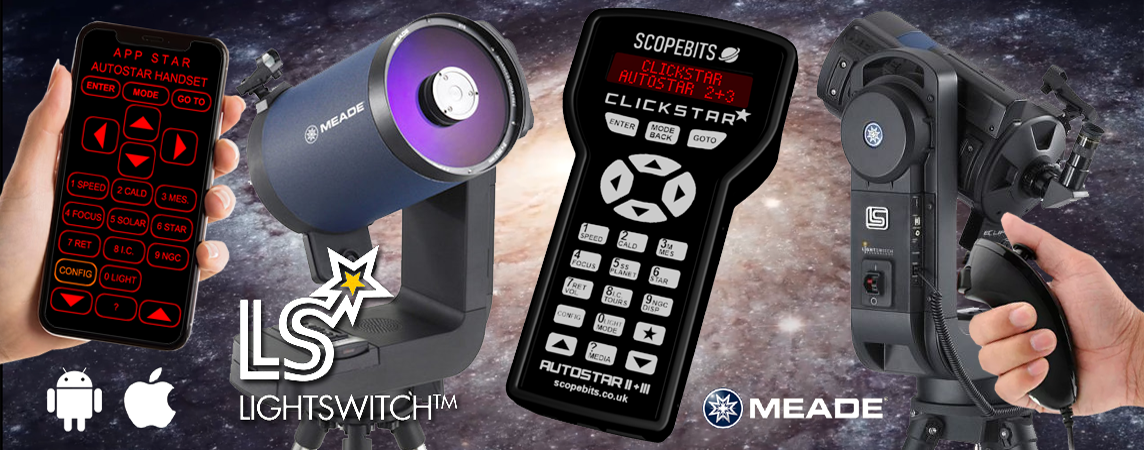
On your Lightswitch the menus come from the telescope itself, so you'll see your own Autostar III firmware.
Not all operations are available, and some are simulated for illustration. Planet positions are for demonstration only.
A bright two-line backlit display showing exactly what your Autostar shows: menus, coordinates, the cursor when you type numbers, and long descriptions that scroll across. Fine-tune the contrast from the back (see screen contrast).
The same as the real keys. Hold MODE for about two seconds to open the status screens (RA/Dec, Alt/Az, time, site).
The same as the real keys. Hold BACK for about two seconds to open the status screens (RA/Dec, Alt/Az, time, site).
Big, tactile arrow keys you can find in the dark. Press and hold to move the telescope, let go to stop. The number keys set how fast it moves.
Slew speed, number entry and the Autostar 2 shortcuts: SPEED, CALD, MES., FOCUS, PLANET, STAR, RET., I.C, and NGC.
Slew speed, number entry and the Autostar 3 shortcuts: SPEED, CALD, MES., FOCUS, PLANET, STAR, VOL., TOURS, DISP, and 0 for MODE.
CLICKSTAR's own key, never sent to the telescope. Hold it for two seconds to open the settings menu: the phone apps, Wi-Fi setup, updates and Wi-Fi reset.
Also CLICKSTAR's own key, so pressing it never changes anything on the telescope. In the settings menu it leaves the menu, just like 2.
? and ? scroll through menus and lists. ? gives help on whatever is on the display (MEDIA on Autostar 3).
? and ? scroll through menus and lists. MEDIA (the ? key) works just as on the Autostar 3 handset.
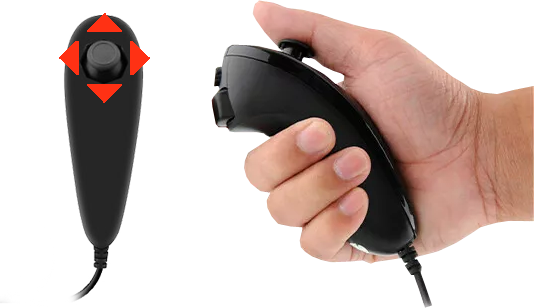
Point at a card to see the move.
Push the stick up, down, left or right to move the telescope. Let go and it stops.
Hold the C button and push the stick up for a faster slew speed, or down for slower. Let go of C to set it.
Hold the Z button for your Autostar's focus control (with a Meade electric focuser fitted): push the stick up or down to focus in or out, and left (fine) or right (fast) to change the focus speed. Let go of Z to go back to slewing.
Works in any browser, including Safari on iPhone and iPad, with nothing to install. CLICKSTAR makes its own Wi-Fi network and serves the handset page itself, so it works at a dark site with no internet or mobile signal.
Hold CONFIG for two seconds. CLICKSTAR plays a short tune. On the original CLICKSTAR, hold ? instead.
Choose which phone app to use.
CLICKSTAR starts its own Wi-Fi network, called APPSTAR.
On your phone, join the Wi-Fi network APPSTAR (no password), then open http://192.168.4.1 in your browser. If your phone warns that the network has no internet, choose to stay connected.
Tip: "Add to Home Screen" gives you an APPSTAR icon that opens full screen.
The handset appears on your phone with the same display as CLICKSTAR, and CLICKSTAR's own display goes back to your Autostar. Use either, or both: CLICKSTAR's keys and joystick still work.
CLICKSTAR's Bluetooth is ready whenever it's running, so your phone can stay on your home Wi-Fi or mobile data. The Bluetooth app adds Speak Display and game controller support.
Open www.scopebits.co.uk/APP/WEBAPP in Google Chrome, with Bluetooth on. On a computer, use Chrome or Microsoft Edge on one with Bluetooth.
Safari can't use Bluetooth, so install the free BlueFy browser, open it and type www.scopebits.co.uk/APP/WEBAPP into it.
The first time, pick your handset layout (Autostar 2 or 3) and whether to Speak Display, then press OK.
Press LINK (bottom right), choose APPSTAR in the popup and press Pair. You'll hear a tone when it's connected.
Press LINK (bottom right), then tap APPSTAR when BlueFy shows Select device. You'll hear a tone when it's connected.
If you've been using Wi-Fi, switch back with CONFIG, 6, then 7. CLICKSTAR shows this reminder.
The phone runs the real APPSTAR app, connected to a simulated telescope. Not all operations are available, and some are simulated for illustration.
You only need this to update CLICKSTAR over Wi-Fi. It connects CLICKSTAR to your home Wi-Fi; the phone app doesn't need it.
Hold CONFIG for two seconds (? on the original CLICKSTAR).
CLICKSTAR checks for a saved Wi-Fi network. To change one you've already saved, reset the Wi-Fi first.
CLICKSTAR starts its own Wi-Fi network called CLICKSTAR, with the setup page at 192.168.4.1.
On your phone, open the Wi-Fi settings and join CLICKSTAR. There's no password. Some phones then open the setup page by themselves.
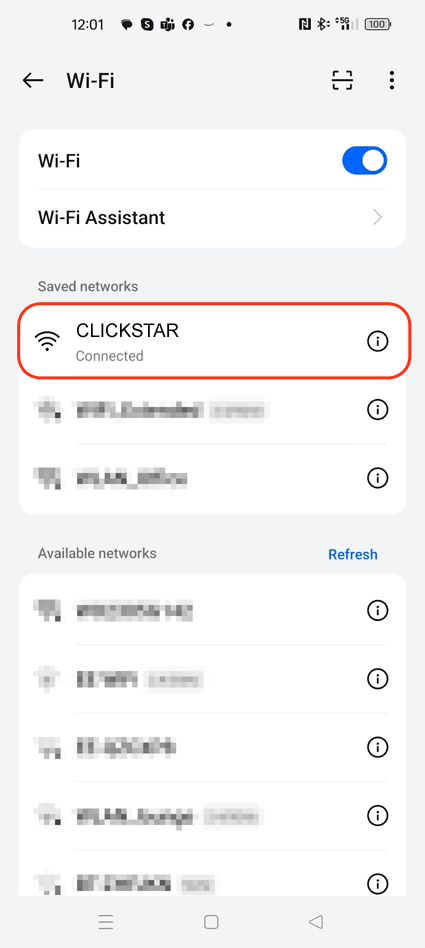
If it didn't open by itself, open your browser and go to 192.168.4.1. You'll see the WiFiManager page for CLICKSTAR: press Configure WiFi.

Tap your network in the list (or type its name in SSID), enter its password and press Save.
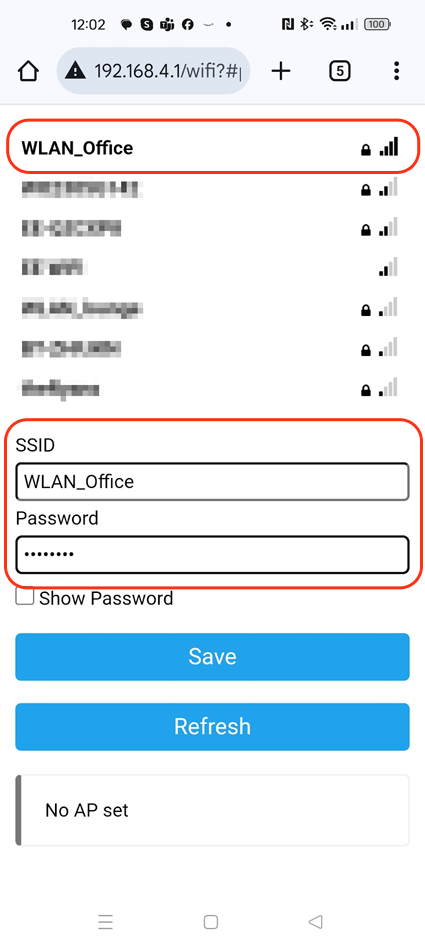
CLICKSTAR joins your Wi-Fi and offers the update. Press 4 to update now, or 2 to leave the menu.
Two ways: over Wi-Fi, from CLICKSTAR itself, or over USB from this page. Updating also keeps CLICKSTAR's built-in APPSTAR handset page up to date.
Hold CONFIG for two seconds (? on the original CLICKSTAR). CLICKSTAR must be set up on your Wi-Fi: the menu then shows 1:MENU.
CLICKSTAR connects to your Wi-Fi.
CLICKSTAR downloads and installs the latest firmware, showing its progress.
CLICKSTAR plays a tune and restarts with the new firmware.
Use Google Chrome or Microsoft Edge on a desktop computer (mobile browsers and Safari can't do this). You should hear the USB connect sound; drivers install automatically. Keep this page open while it updates.
Click
Use this to change to a different Wi-Fi network, or if you typed the details in wrong.
Hold CONFIG for two seconds (? on the original CLICKSTAR).
CLICKSTAR forgets the saved Wi-Fi.
CLICKSTAR restarts. Set up your Wi-Fi again when you need it.
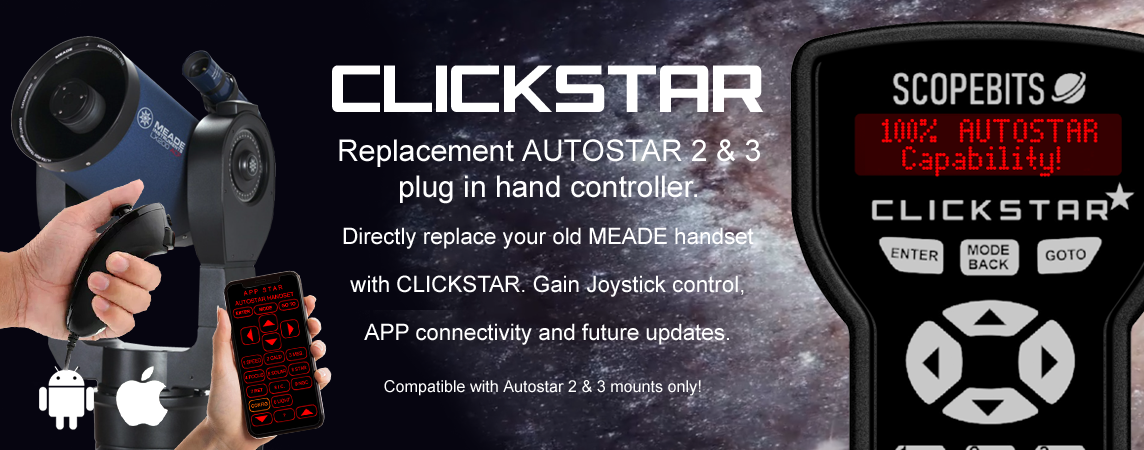
CLICKSTAR plugs into the HBX port. The menus, catalogues and alignment all come from your telescope, so everything works exactly as before.
Press 2 or ?. CLICKSTAR shows "Cancelled..."; press MODE to carry on where you were.
Use CLICKSTAR, the joystick and the phone app at the same time. Every key shows on both displays.
If the Wi-Fi page loses its connection while you hold an arrow on it, CLICKSTAR lets go of the key so the telescope stops.
Hold ? rather than CONFIG to open the settings menu. The other settings steps are the same.
Add the optional joystick for one-handed slewing in the dark. Plug it in or out at any time; CLICKSTAR beeps when it connects. Hold C to change the slew speed and Z for focus. See joystick control, or find it in the store.
Copyright 2026 ScopeBits.