

To get the best performance from your ScopeBits products, your Autostar handset should be running the latest firmware.
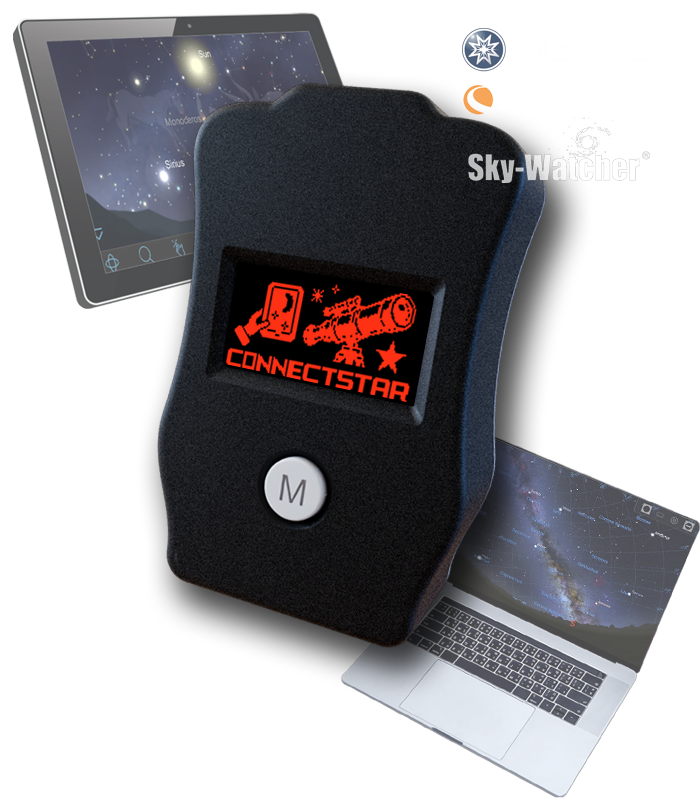
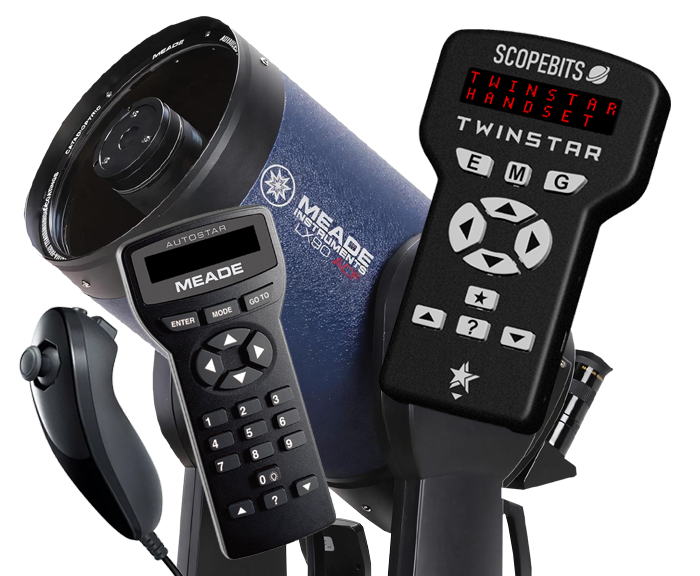
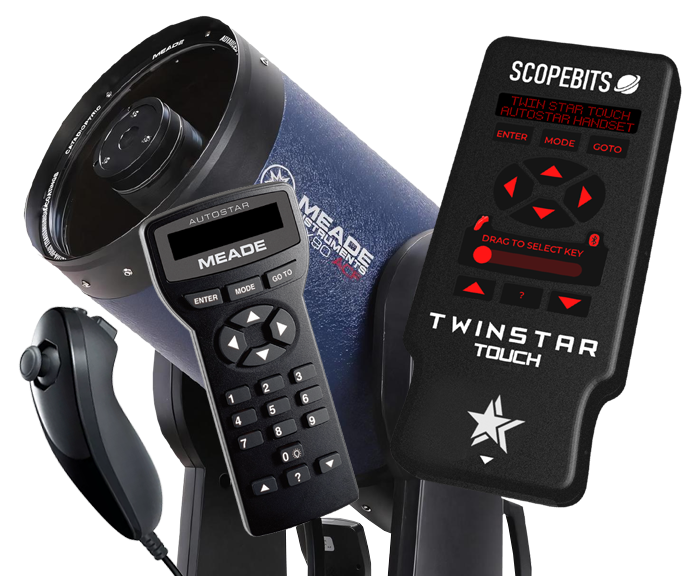
Simply plug your device into your computer using the USB port on each device. Note Scopebits products do not contain handset firmware, they just aim to make it easy to use StartPatch software.
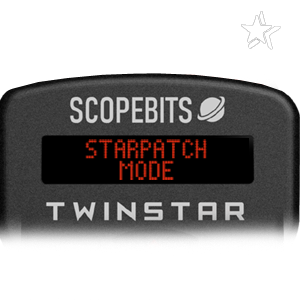
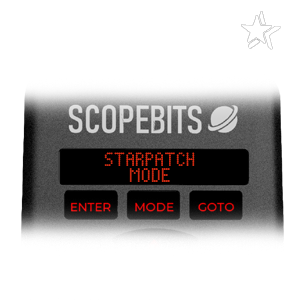
It is important to get the latest Scopebits firmware for your deivce. Visit and check the version of your device.
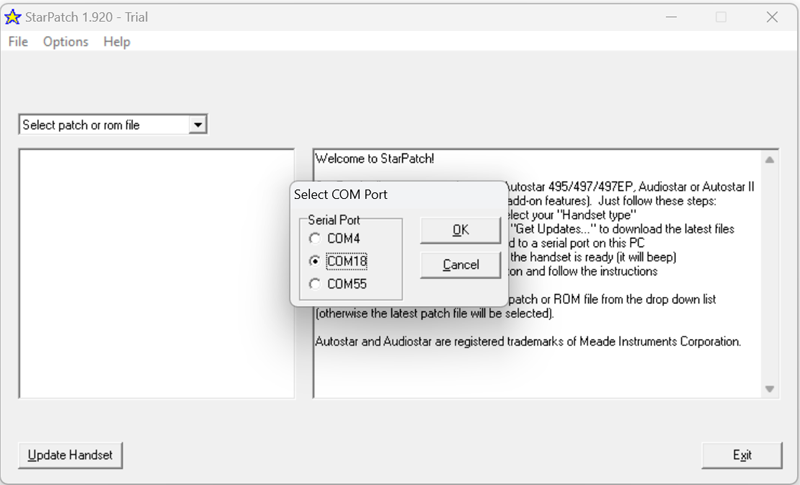
Select the COM port for your ScopeBits device.
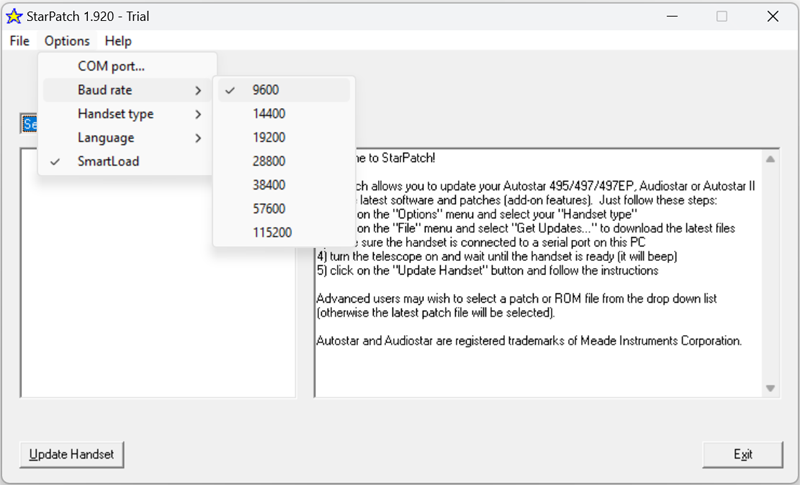
Set the baud rate to 9600.
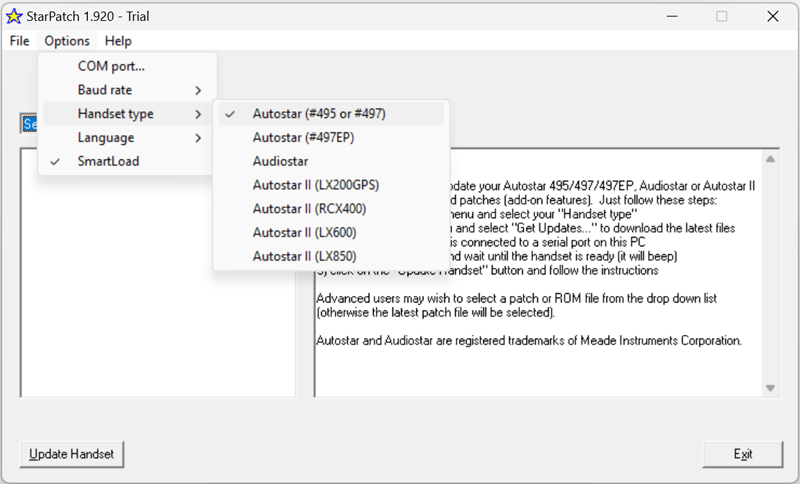
Select handset type (#495 / #497). Audiostar units usually do not require updates.
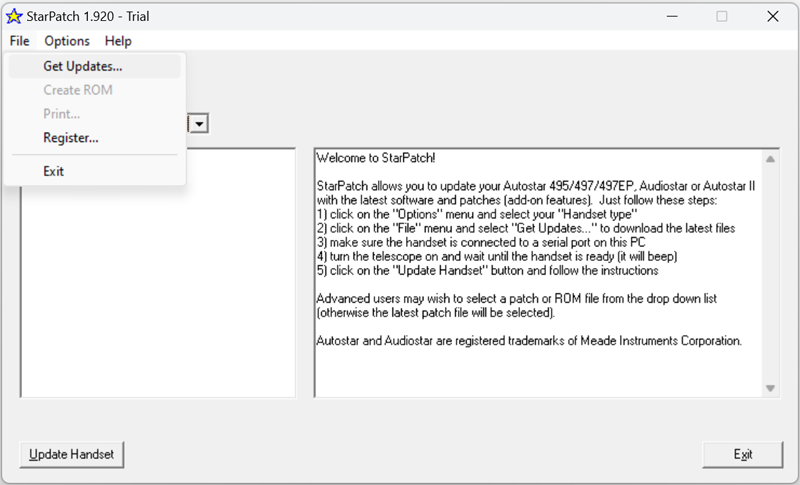
Click Get Updates...
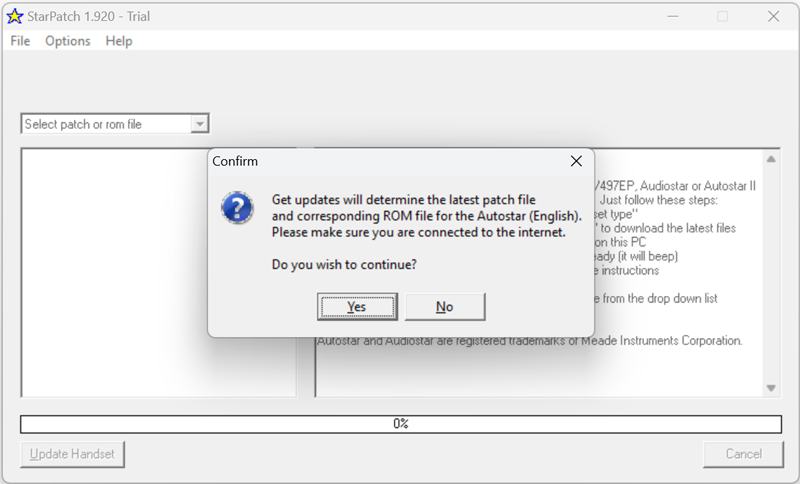
Confirm to download the latest firmware.
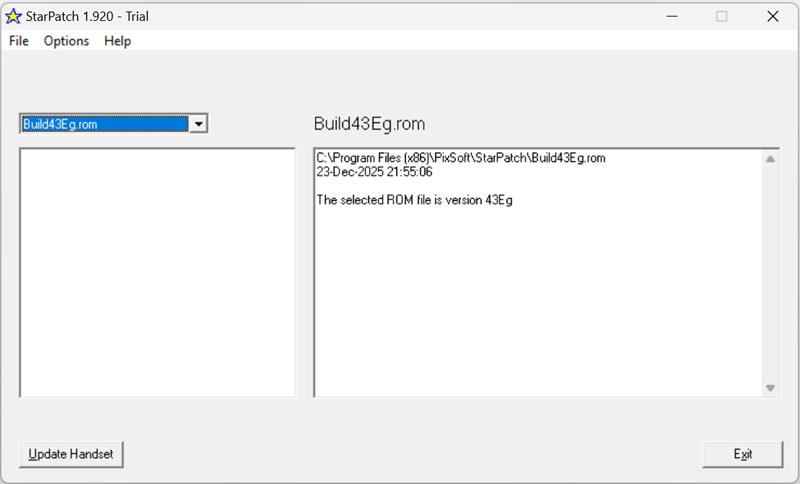
Select Build43Eg.rom and choose Update Handset.
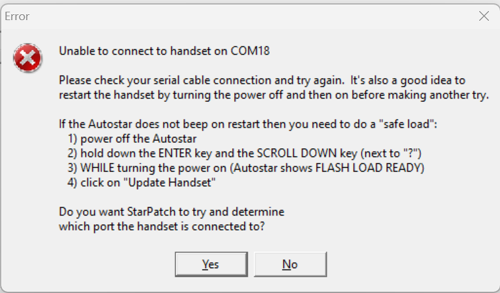
Put the handset into download mode.
Or using the handset goto Setup:Download Press Enter Then Enter
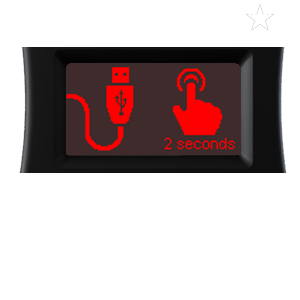
When it is the required in USB mode, press the M button for 2 seconds. This will enter the specific MEADE handset update mode. If Connectstar can put your handset in download mode it will display Downloader Active. You can then connect StarPatch to it and perform the update. This only works with the latest CLICKSTAR firmware. Update your device via the inbuilt menu (Wifi), or use the Web updater in the support section. If StarPatch cannot connect, then CONNECTSTAR could not put it into download mode. Please use the Enter and down arrow (Left next to the ? button and power on). This will put your handset into FLASH MODE. Alternativly if your buttons are not working then it may be required to open up your handset to get to the button matrix. Guides for this will follow.
Your Twinstar may already be in handset download mode because it could not get any LCD updates from the handset. If not, then press and hold the ? until the LCD shows the Download updater text. You can then connect StarPatch to it and perform the update. If StarPatch cannot connect, then TWINSTAR could not put it into download mode. Please use the Enter and down arrow (Left next to the ? button and power on - on your original handset - not the TWINSTAR's). This will put your handset into FLASH MODE. If your buttons are not working then it may be required to open up your handset to get to the button matrix. Guides for this will follow.
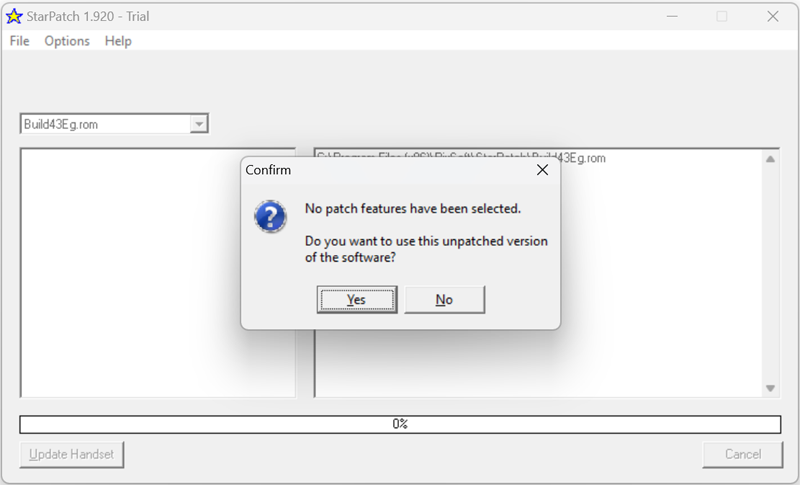
Confirm the prompts to begin flashing.
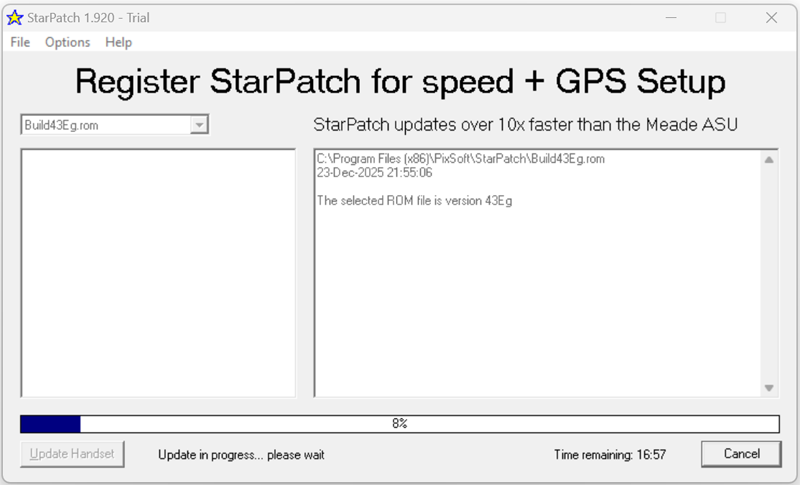
Firmware upload can take several minutes.
Do not power off the telescope.
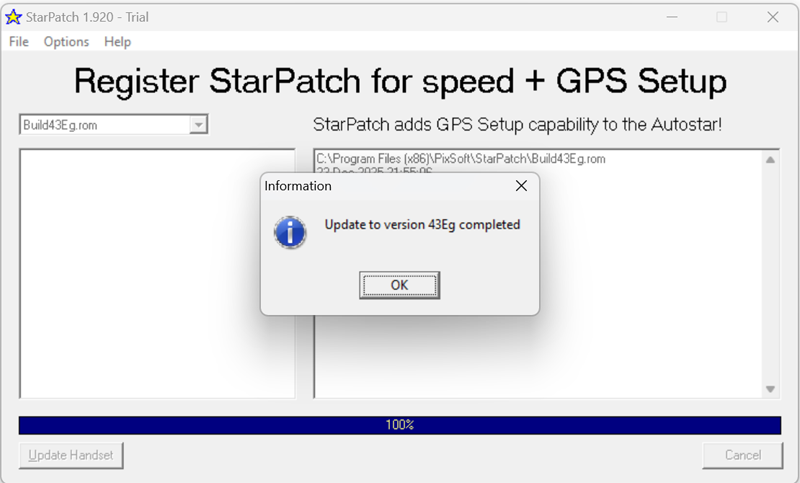
Completed! The handset will reboot with the new firmware.
Reboot your Clickstar by recycling the power or use the paper clip in the small reset hole on the reverse.
Reboot your device by removing and reinserting the handset connecion lead.