TWINSTAR

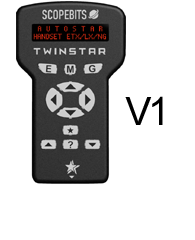
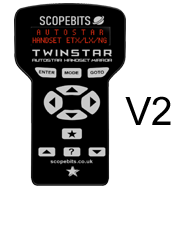
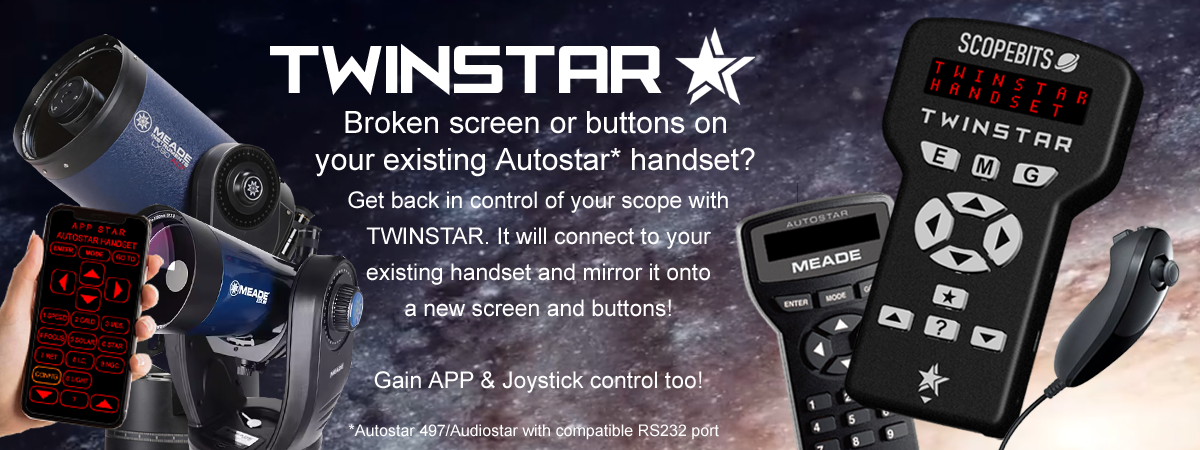
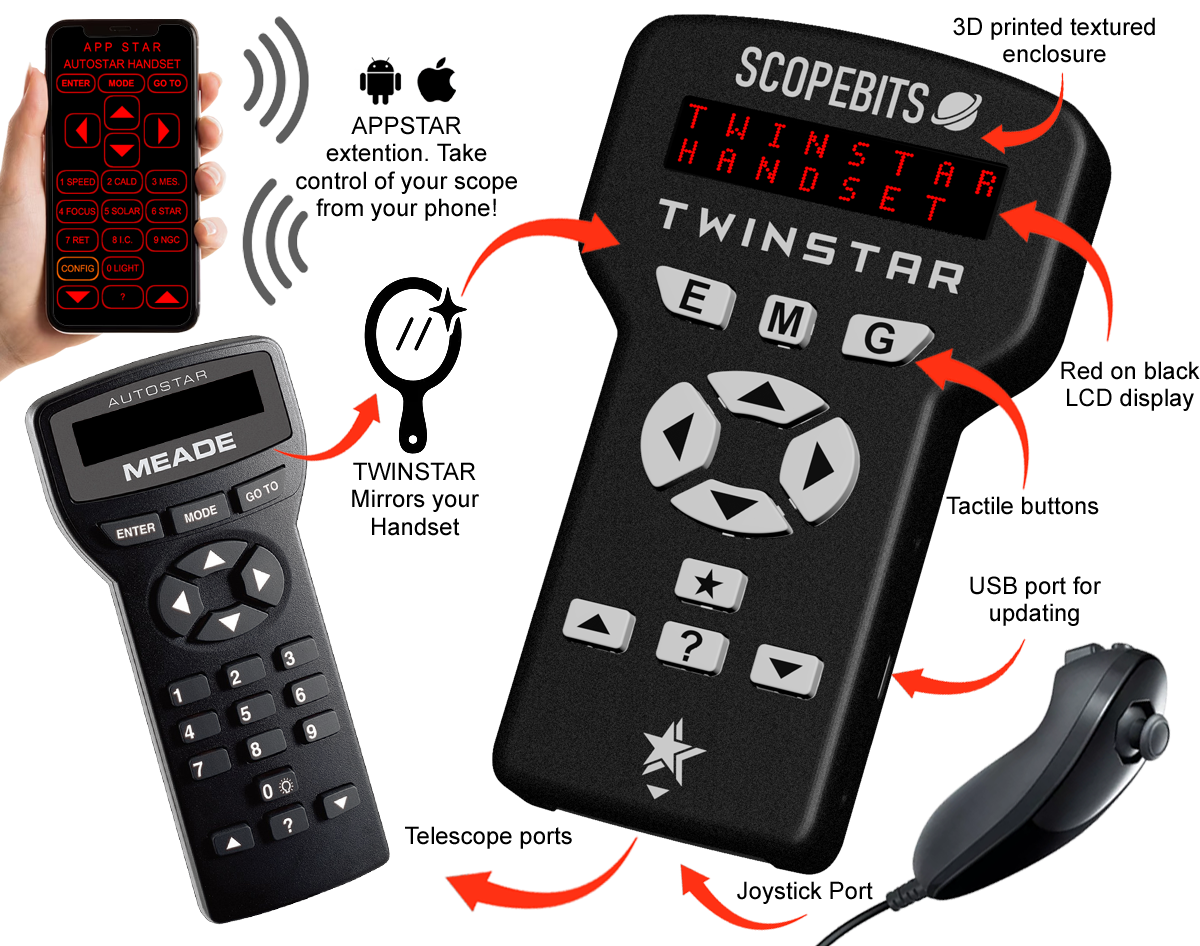
TWINSTAR is a tactile companion handset designed to work alongside your Autostar or Audiostar, combining classic buttons with modern electronics, optional joystick control, and optional joystick control. Use it hands-on, or pair it with the FREE ScopeBits app on Android or iOS for wireless control. Familiar to use, flexible in operation, and especially helpful when original buttons or displays have seen better days.
 

Quickly jump to an information section using these buttons

TWINSTAR demo video

This short demonstration video shows a brief overview of TWINSTAR in action. Covers main AUTOSTAR compatibility, Joystick control, and APP control. See below on this page for further details of all capabilities.


TWINSTAR unit overview

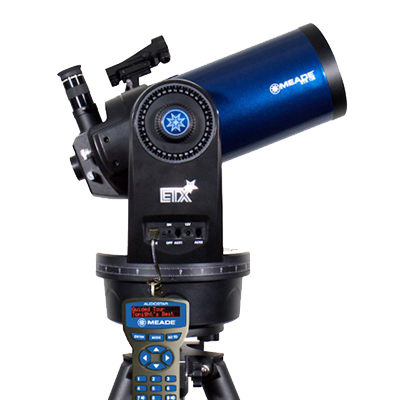
TWINSTAR works alongside your existing Autostar handset - it doesn't replace it. It restores a clear, easy-to-use screen and controls, while adding modern features such as app connectivity and optional joystick control. TWINSTAR connects via the handset's RS-232 port, which is present on all Audiostar and 497 Autostar handsets.

ONESTAR

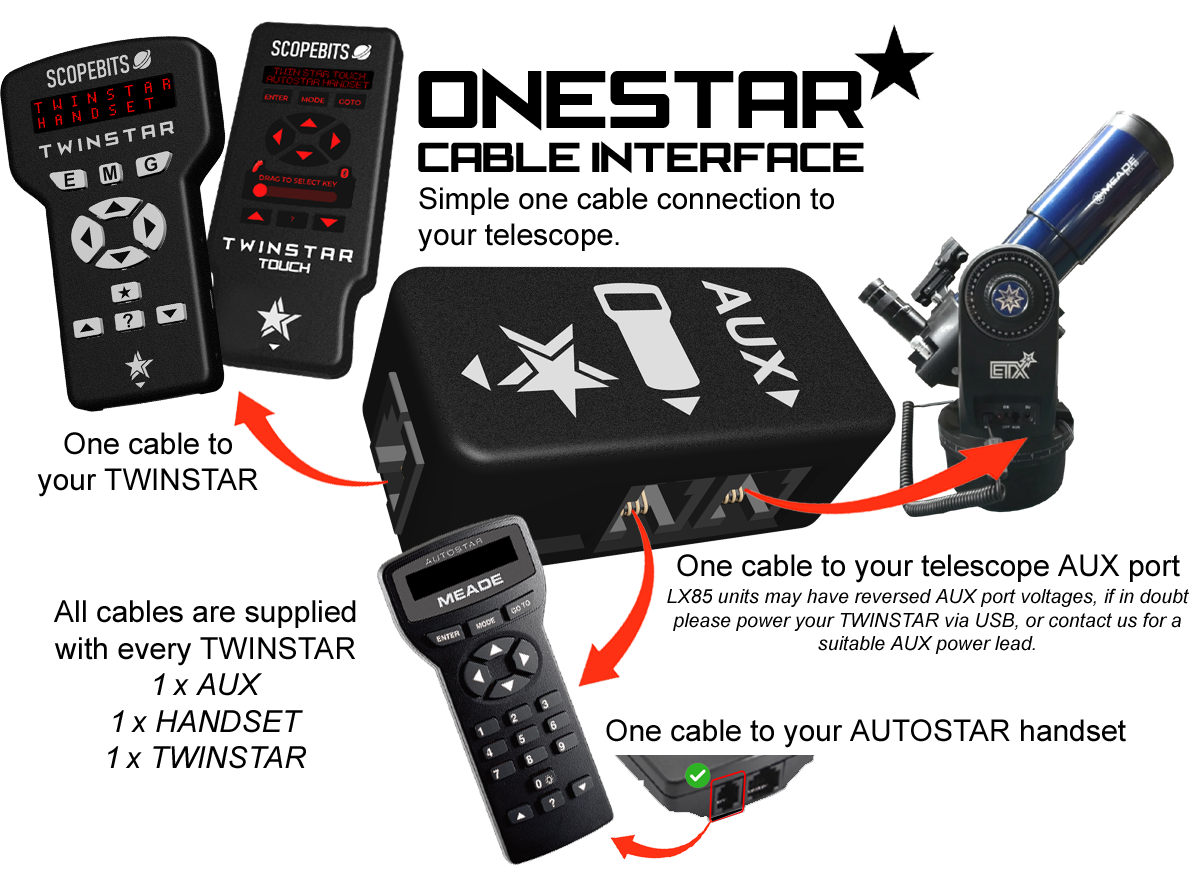
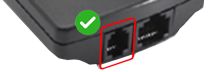
TWINSTAR stays neat and simple thanks to the ONESTAR interface, bringing power and data together in one cable. Please check the connection image below to confirm compatibility. For best results, handset firmware version 4.3GN is recommended updatable via StarPatch.

Numeric Keys

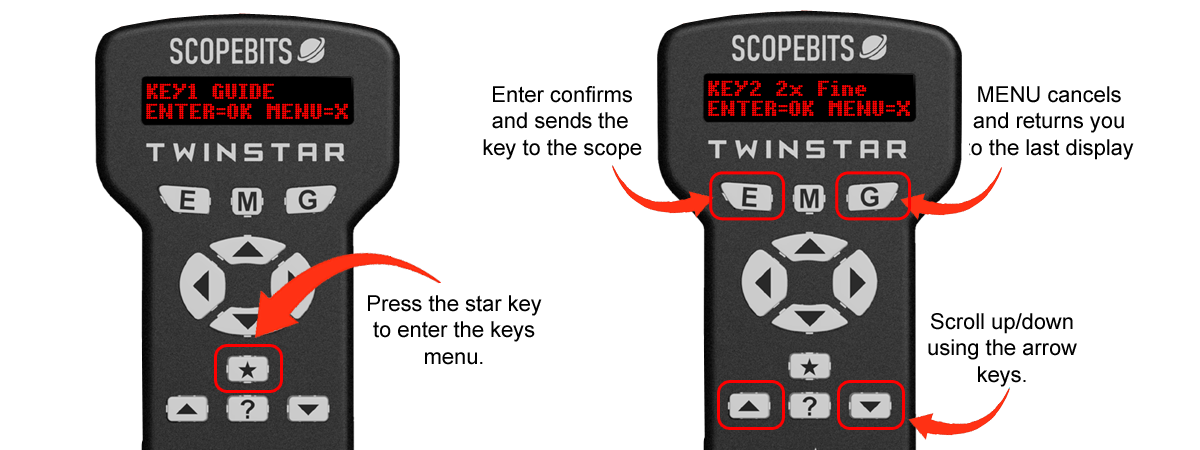
To keep the handset compact, the numeric keys are replaced with key macros. Considering the text entry is a minimum with the Autostar handset operation, this is a good compromise.

StarPatch

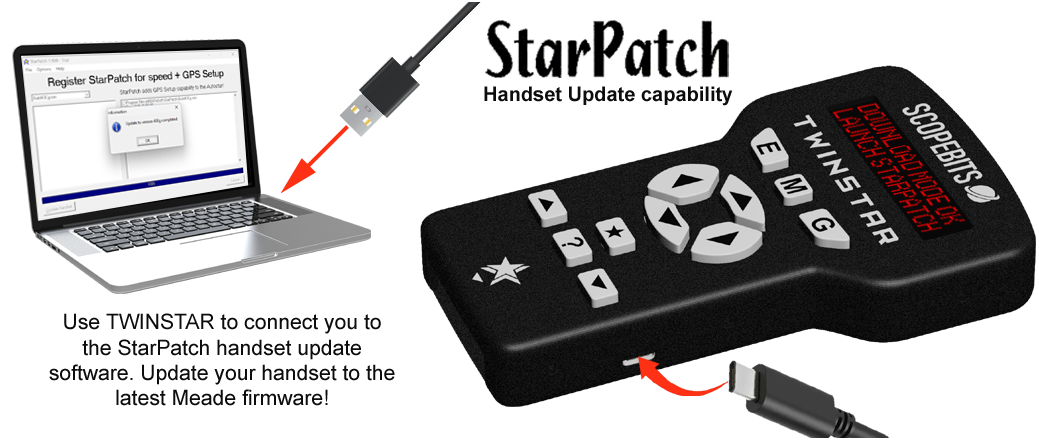
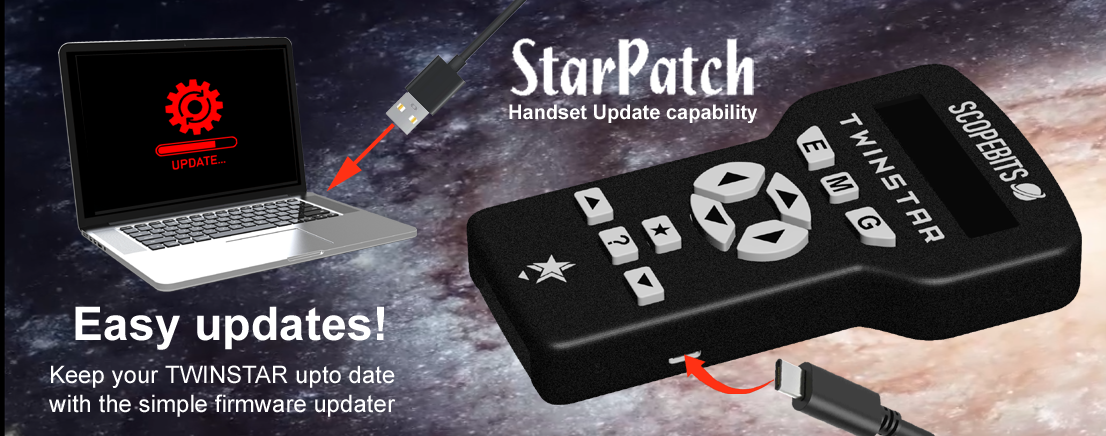
To get the best performance from your ScopeBits products, your Autostar handset should be running the latest firmware. Use your TWINSTAR to act as an interface between your computer and the StarPatch software.

Download StarPatch or visit stargps.ca/downloads

Simply plug your device into your computer using the USB port on each device. Note Scopebits products do not contain handset firmware, they just aim to make it easy to use StartPatch software. Use the guide below to see how to use StarPatch
 

StarPatch guide


Using the APPSTAR APPS

Here are the guides to using the APPSTAR mobile app with your TWINSTAR. Select the device platform you require.


How to update the firmware

You can update your TWINSTAR TOUCH using the USB online updater. Follow this guide.


Joystick motions

If you have the optional joystick with your unit, here are the guides on how it works


Adjusting the screen contrast

On the back of your TWINSTAR, there's a small hole at the top. Use a mini Phillips (star) screwdriver to gently fine-tune the contrast of the LCD.


Reset TWINSTAR

On the back of your TWINSTAR, there's a small hole on the back near the USB-C input. Use a paper clip or similar mall object to reset and restart your TWINSTAR.


3D print files

Listed here are the 3D print files available for this product.

These are available in the store, but if you have the facility to 3D print them here they are.

Right click and "Save As"

3D printable STL for the bracket

Use a high quality PLA, ABS or PetG. 5% infill. This is a multi-use bracket and can be fit onto the LX90 handles, or used with the leg adapters below. The bracket also can hold the joystick.

3D printable STL for the 2" tube leg adapter

Use a high quality PLA, ABS or PetG. 5% infill. To be used with the bracket above.

3D printable STL for the 1.5" tube leg adapter

Use a high quality PLA, ABS or PetG. 5% infill. To be used with the bracket above.


FAQ

Here are some of the frequently asked questions.

Check these as they may answer any support questions
No. TWINSTAR is a "twin" to your existing Autostar. If your handset has a broken screen or buttons that are temperamental, TWINSTAR connects to your handset and mimics it, giving you a fresh screen and responsive controls. See this guide.
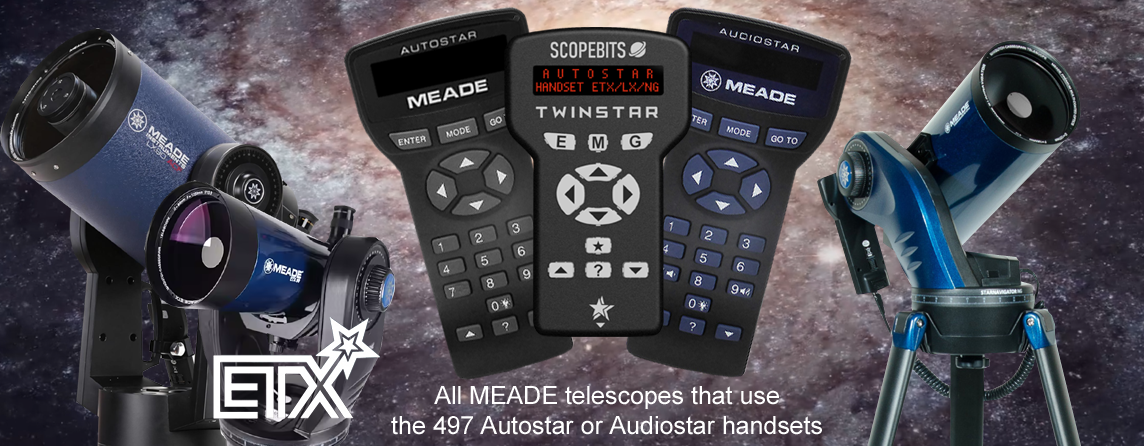
TWINSTAR is designed to work with compatible Meade Autostar handsets including the popular 497 and Audiostar models. Always check the compatibility information on the product page before purchasing. The most important feature needed is the RS232 socket on your handset. It is the one next to where the handset lead that plugs into the mount goes.
TWINSTAR connects using the ONESTAR products (included). It provides all leads to connect TWINSTAR to your handset and mount. See this guide.
This is a purely personal choice. The support was added because it makes slewing effortless compared to trying to find handset buttons in the dark. Some mounts also allow focus control from the joystick. See this guide.
As the numerical buttons on the 495/497 handset are mainly used for entering speed settings, it was decided that the numerical keys could be accessed via a sub menu. Just click the star icon, use the up and down to select the key and press enter to send it. See this guide.
Yes. TwinStar supports APPSTAR functionality, allowing you to control your telescope through the APPSTAR handset replacement app. See this guide.
Yes. TWINSTAR mirrors the Autostar display and allows you to use the controls just like the original handset, making it easier to operate your telescope when the original display is difficult to read.
No additional power supply is required. TWINSTAR is powered through the telescope handset connection. Ensure if running on batteries that they are fresh. Low batteries can cause the TWINSTAR to not start.
Yes. Firmware updates can be installed through the ScopeBits firmware update tools available on the support website. Updating firmware ensures the latest features and compatibility improvements. Make sure you're using Google Chrome or Microsoft Edge on desktop. Mobile browsers and Safari are not supported for WebUSB/WebSerial updates. See this guide.
Check that all cables are securely connected and that your telescope and Autostar handset are powered on. If the issue continues, restart the telescope and reconnect the device. In some cases the firmware your original handset is running may be out of date. Use the Starpatch feature to load the latest handset firmware, this should enable communication with TWINSTAR. See this guide.
This is almost certainly a power issue. Ensure if running on batteries that they are fresh. Low batteries can cause the TWINSTAR to not start properly.

Customer reviews

Here are some reviews from customers about their TWINSTAR.

Also check out the gallery to see customer images of ScopeBits gear in action.


BUY

If all of the above info has interested you, and you are interested in purchasing a TWINSTAR, visit the store to see purchasing options.

Copyright 2026 ScopeBits.