Please select your telescope platform

This is so the we can show you the relevant information.
APPSTAR

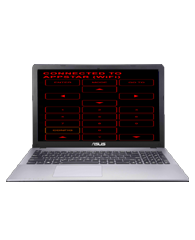
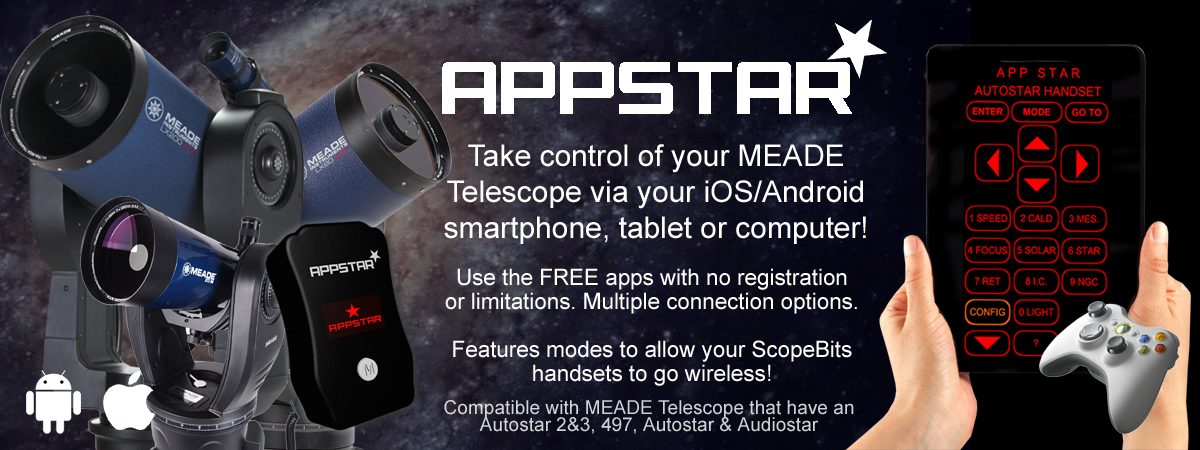
Take control of your telescope using your phone, tablet or even a desktop computer! Enjoy wireless control via a variety of connection technologies: Wifi & Bluetooth!
 

Quickly jump to an information section using these buttons

APPSTAR demo video

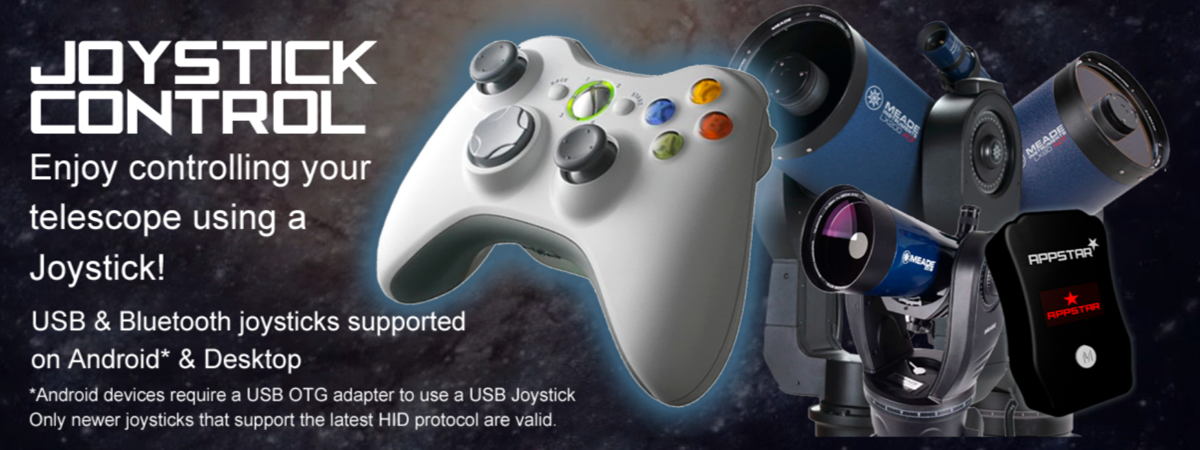
This short demonstration video shows APPSTAR working with a Celestron Nextstar 4SE & MEADE ETX via Audiostar. The operation is the same on other telescope models. All are compatible with the joystick controller.


APPSTAR connections

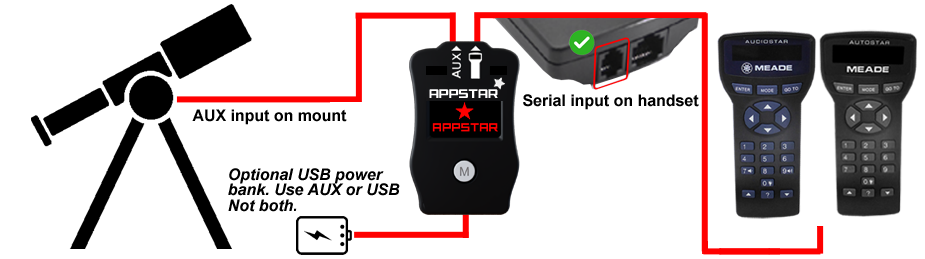
Here is the information needed to connect your APPSTAR to your mount system.
APPSTAR Connection

*IMPORTANT - some EQ LX mounts have the AUX port polarity reversed, this is dictated by a small white sticker in the battery compartment. If in any doubt please use the USB power bank to power your Telescope bridge, and not use AUX.

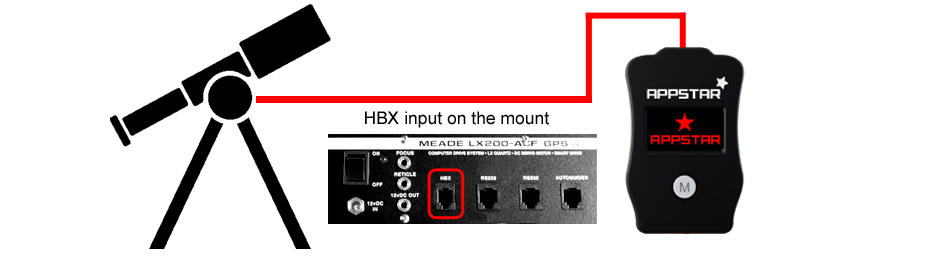
LX200 platform

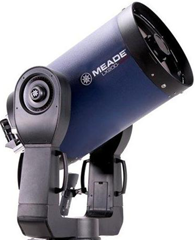
APPSTAR is compatible with all LX200GPS or greater platforms.

Any mount that uses an Autostar 2 handset.

If you are looking for the LX200 Classic version click here

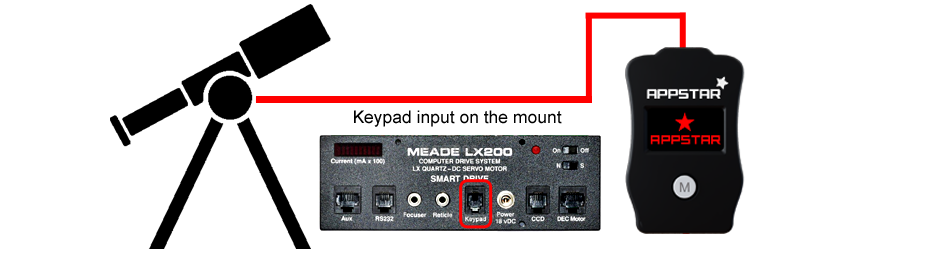
LX200 platform

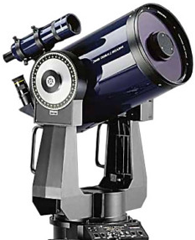
CONNECTSTAR is compatible with all LX200 Classic platforms 3.0+.
APPSTAR plugs directly into your KEYPAD port.

If you are looking for the LX200GPS version click here

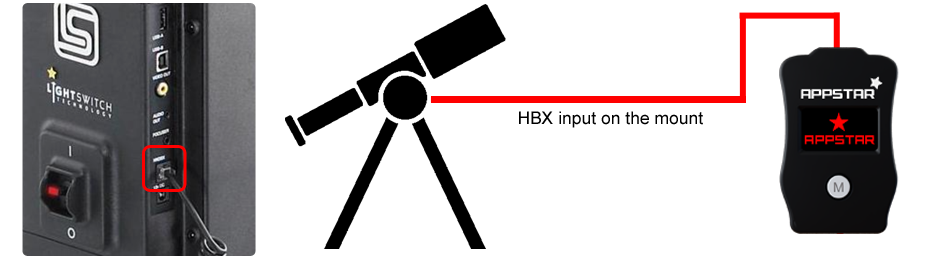
LX200 platform

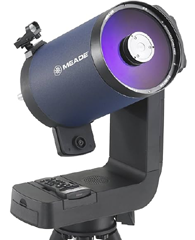
APPSTAR is compatible with all LS mounts that have the Autostar 3 handset.


APPSTAR unit overview

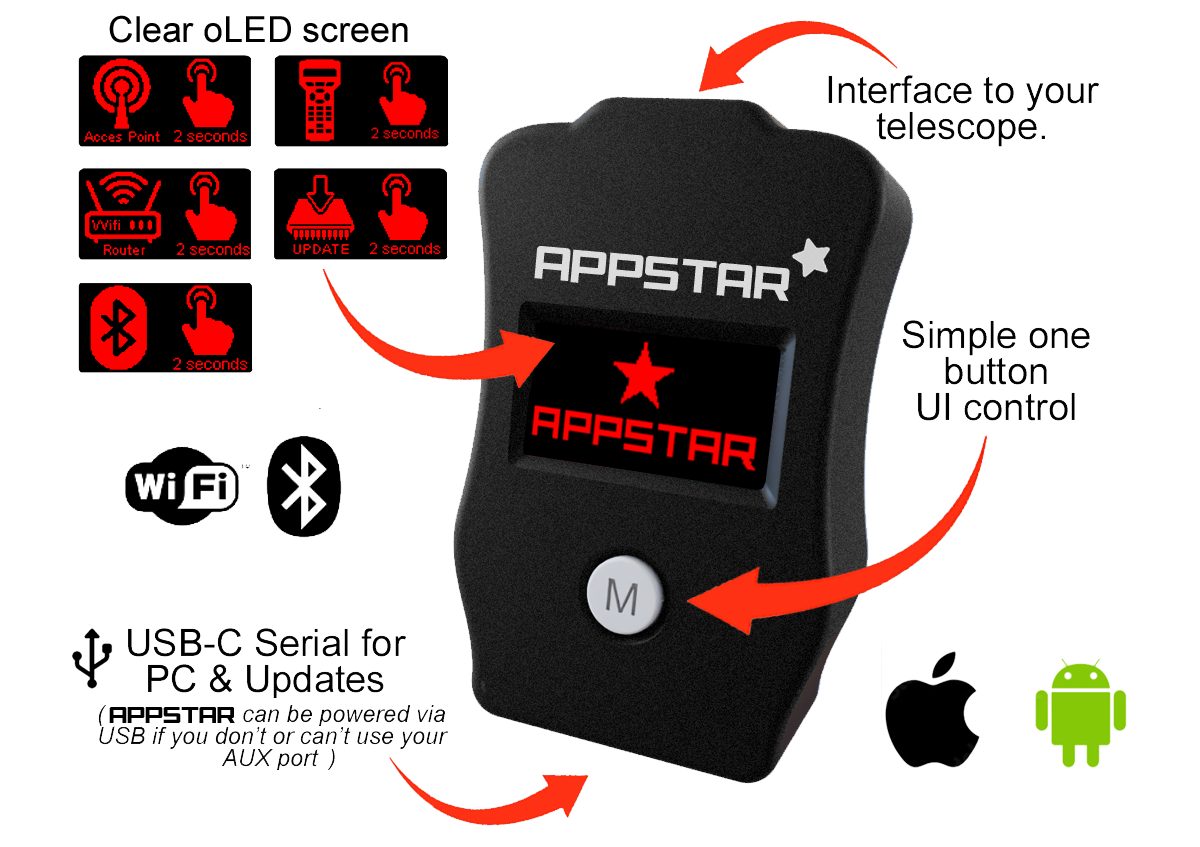
Details about the APPSTAR unit and it's features

APPSTAR Screens Explained

Below are the screens you will see when using APPSTAR. Pressing the M button will allow you to scroll through them. Each screen has a feature explained below.

Default Screen

This is the screen you will see depending on what mode you have selected.
Press the M button to cycle through available modes.
(Only modes available are shown)

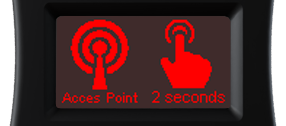
Wifi Access Point

Press the M button for 2 seconds. This mode will create a Wifi network called "APPSTAR" and assign an IP address 192.168.4.1 Connect to this SSID on your device and start your app.
Wifi Router Mode

Press the M button for 2 seconds. You may first need to setup the Wifi connection. Fater you have a vaild connection, you can use APPSTAR on your existing wifi.
See this guide

Bluetooth Control

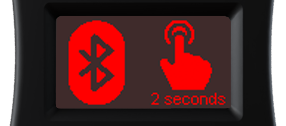
Press the M button for 2 seconds. Creates a Bluetooth LE service for easy connection. This can be used for both Android & iOS devices plus desktop computers.
Handset Remote Mode

Press the M button for 2 seconds. This mode will start the handset connection mode. Supporting both Clickstar and Touchstar wireless versions. This mode enables your controller to be wireless!

Reset Wifi (Router)

Press the M button for 2 seconds. This will erase the router settings and return to Access Point mode.

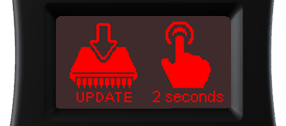
Update APPSTAR firmware

Press the M button for 2 seconds. Only available in Router mode.

About

This screen will show you information and your device's serial number.


Using the APPS

Below is a quick guide for connecting to your telescope via APPSTAR. Select your device platform from the buttons below...


Router setup

Below is a quick guide for connecting CONNECTSTAR to your router.


How to update the firmware

There are 2 ways to update your APPSTAR, one via the device using Wifi, or via this website USB updater. Below are guides for each method.


FAQ

Here are some of the frequently asked questions.

Check these as they may answer any support questions
APPSTAR has 2 main Wifi modes. 1), WIfi AP (Access Point). This is where it will create it's own Wifi network you can connect to. 2). Wifi STA (Station). APPSTAR can join your exisitng Wifi inftrastructure so that the app on your network can find it. See this guide.
APPSTAR has a fairly low power Wifi antenna. Therefore the range is limited to about 10m in AP mode. Considering you will probably be close to your scope when using other apps this is not so much of an issue. When using station mode and for example you have the scope outside, but you are inside, it does depend on your exisiting Wifi setup and it's range.
APPSTAR uses legacy Wifi so is desgned to be as compatible as possible. Modern routers with advanced beam steering, packet slicing etc may not see APPSTAR, but this is rare. Consider changing the router settings to accomodate legacy devices.
In the event that you accidentally entered incorrect info when connecrting to a router, or if APPSTAR can't join a pre-existing network it may appear to hang. It will eventually timeout and return to normal operation. However you can always do a speedy reset. Disconnect any power and then hold down the M key and apply power. The screen will tell you it has reset.
Yes but you will need to use a diffrent browser, the BlueFy app is free and will allow you to easily connect to APPSTAR in Bluetooth mode. See this guide (Select Apple iOS APP Blueooth).
No additional power supply is required. APPSTAR is powered through the telescope connection. Only in certain cases such as the Meade EQ LX models might require some additional power (or power lead change). See this guide.
Yes. Firmware updates can be installed through the ScopeBits firmware update tools available on the support website. Updating firmware ensures the latest features and compatibility improvements. APPSTAR also has OTA (Over The Air) updates if connected to a Wifi router. Make sure you're using Google Chrome or Microsoft Edge on desktop. Mobile browsers and Safari are not supported for WebUSB/WebSerial updates. See this guide.

Customer reviews

Here are some reviews from customers about their APPSTAR.

Also check out the gallery to see customer images of ScopeBits gear in action.


BUY

If all of the above info has interested you, and you are interested in purchasing an APPSTAR, visit the store to see purchasing options. Not yet available for the LX200 Classic range, that is coming soon!

Copyright 2026 ScopeBits.